Archive a project
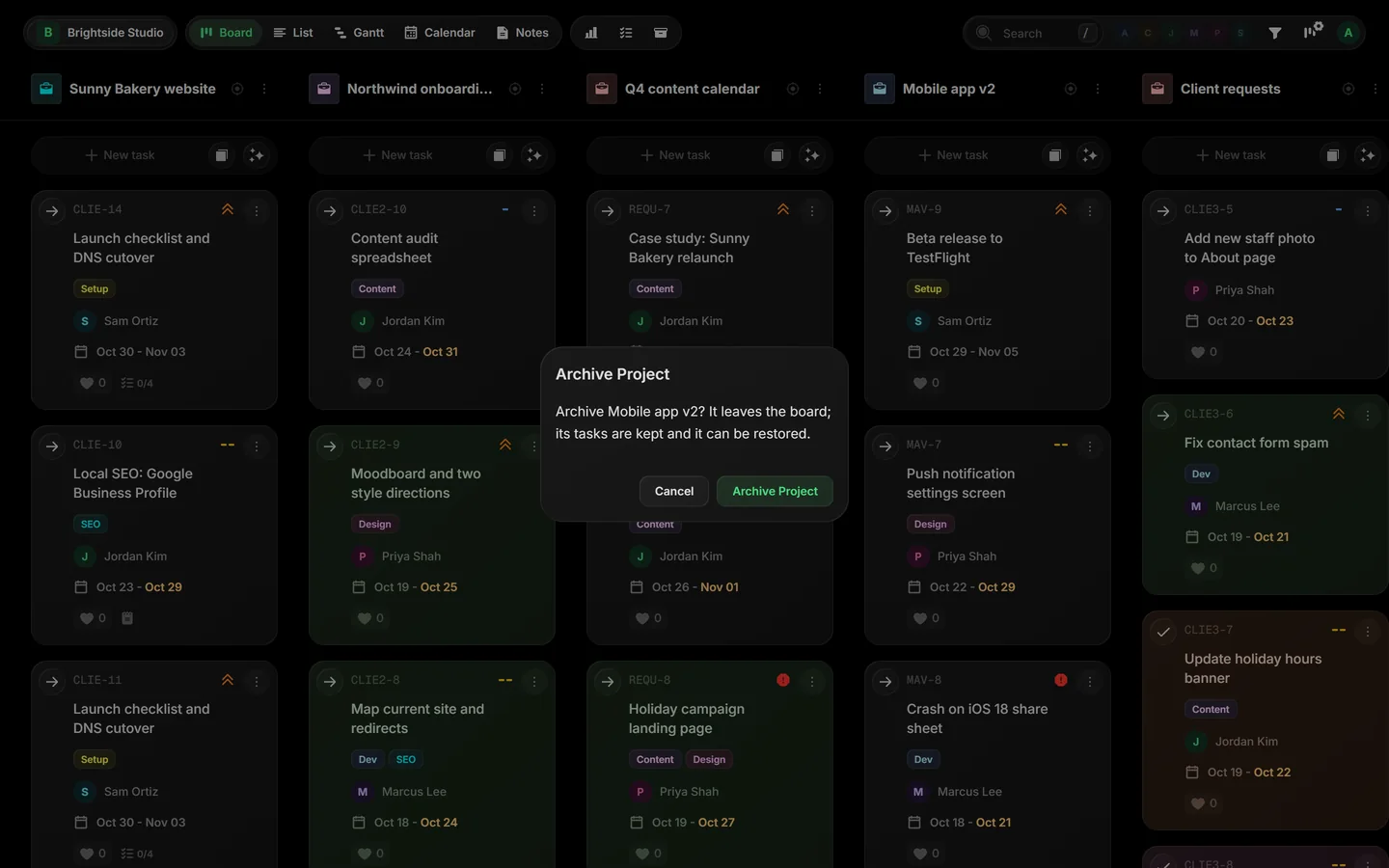
Archive a project when the work is finished. It leaves the board, its tasks are kept, and you can bring it back any time.
 Close-up
01Archive a project#
- Click the ⋮ next to the project's name.
- Pick Archive Project.
- Click Archive Project to confirm.
02Find an archived project#
Open Archive in the toolbar. Archived projects are listed with an Archived badge, and their tasks are under them.
 Close-up
03Bring a project back#
- In Archive, click Unarchive Project next to the project.
- Click Unarchive Project to confirm.
The project and its tasks go back on the board where they were.
04Archive tasks instead#
The same menu has Archive Done Tasks and Archive All Tasks. They clear tasks off the board but keep the project. See Archive.
Related guides
Was this page helpful?