List view
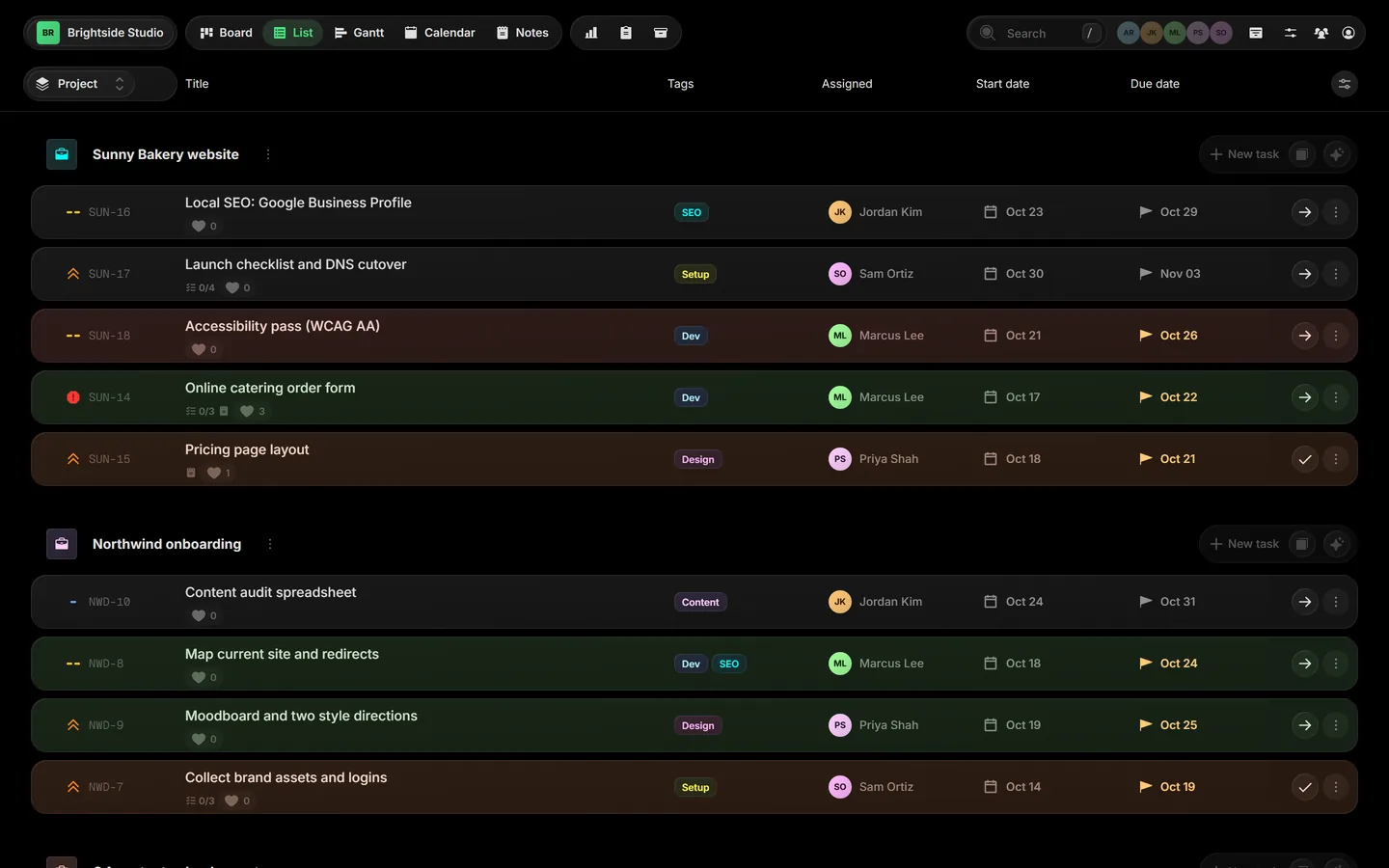
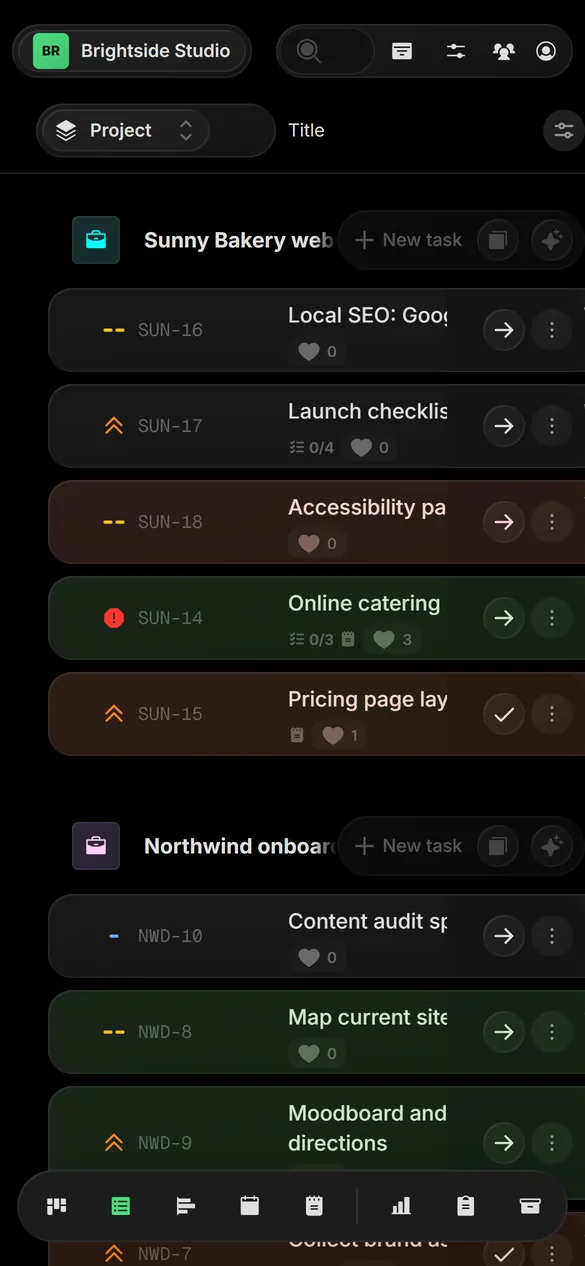
List view shows one row per task, so you can scan a lot of work quickly and see exactly the details you care about.
01Open the list#
Click List in the view bar, or press Ctrl L.
02Group rows#
Use Group tasks at the top left to group by Project, Assigned or Tags. Tasks with no tag collect under No tag.
 Close-up
03Choose your columns#
Pick which details show as columns: Tags, Assigned, Status, Priority, Start date and Due date. Taskift remembers your choice in this browser.
04Done tasks stay out#
The list shows open work. Tasks in a done status are left out so the list stays short.
Related guides
Was this page helpful?