Create a note
Notes hold the writing that doesn't fit on a card: meeting notes, playbooks, brand guides, how-tos. Each board has its own notes, and each note has its own comments.
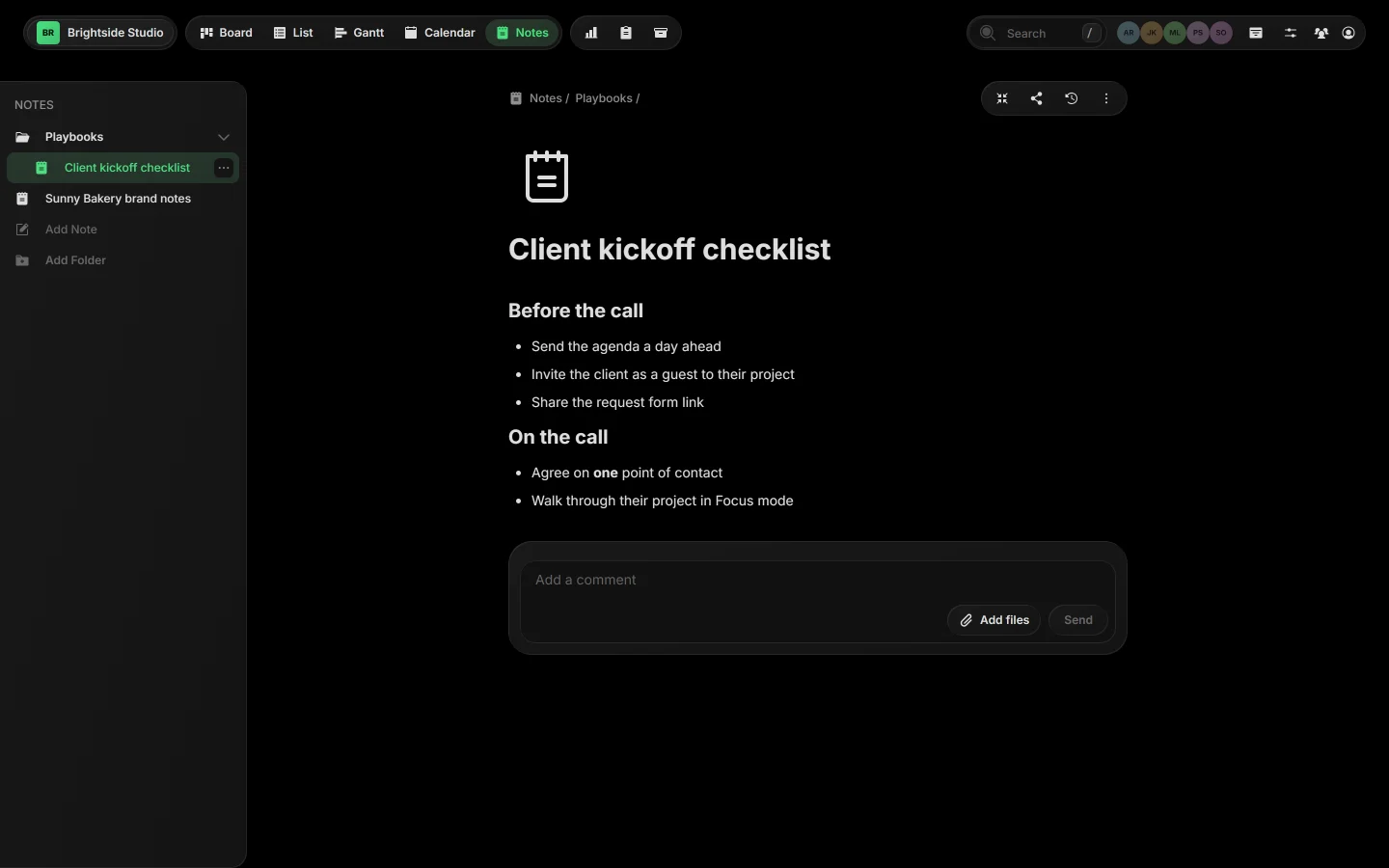
01Open Notes#
Click Notes in the view bar, or press Ctrl O.
02Create a note#
- Click Add Note at the bottom of the list.
- Give it a title.
- Start writing. Taskift saves on its own a moment after you stop typing.
 Close-up
03Write#
The editor handles headings, bullet lists, bold and the rest of what you need for clear notes. Nothing to save by hand: switching to another note saves anything still pending.
04From a task#
Open a task's More menu and pick Create Note. The note links back, so one click takes you to the task it came from.
05Copy a link or delete#
Hover over a note in the list and open its ··· menu to copy a link to it, move it, or delete it.
 Close-up
Tip Notes have comments too, so you can discuss a playbook right under it.
Related guides
Was this page helpful?