Create a project
A project is a stream of work, like a website build or a client onboarding. It gets its own column on the board, its own color, its own statuses and its own task key.
01Create a project#
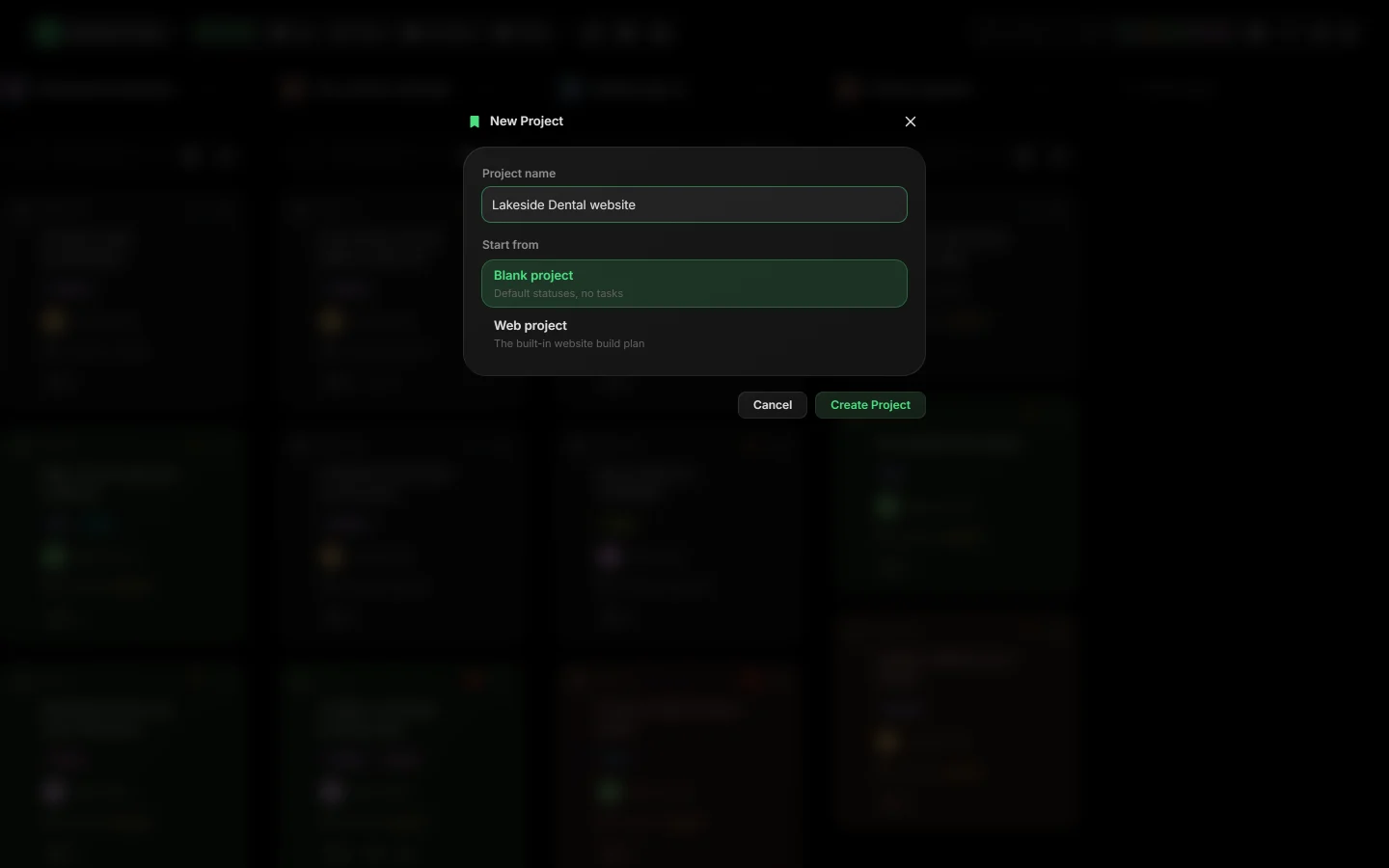
- On the board, scroll past your last project and click + New project.
- Type the Project name, for example the client's website or the job's name.
 Close-up
FIG 2Name it the way your team talks about it. - Under Start from, pick where the project begins.
- Click Create Project, or press Enter in the name field.
02Start from#
| Blank project | The default statuses and no tasks. |
| Web project | The built-in website build plan, with its tasks ready to go. |
| Your templates | Any project you saved as a template. See Project templates. |
03The task key#
Every project gets a short key, and its tasks are numbered with it: SUN-14, SUN-15 and so on. You can change the key in Project details.
04Put projects in order#
Open a project's ⋮ menu and use the left and right arrows at the top to move it along the board.
Tip Bringing work over from another tool? Use Import Tasks in the project's menu to load a CSV file. Rows without a title are skipped and counted, so nothing is lost silently.
Related guides
Was this page helpful?