Focus mode
Focus mode shows one project at a time, with a column for each of its statuses. Use it to work through a project, or to walk a client through their own work.
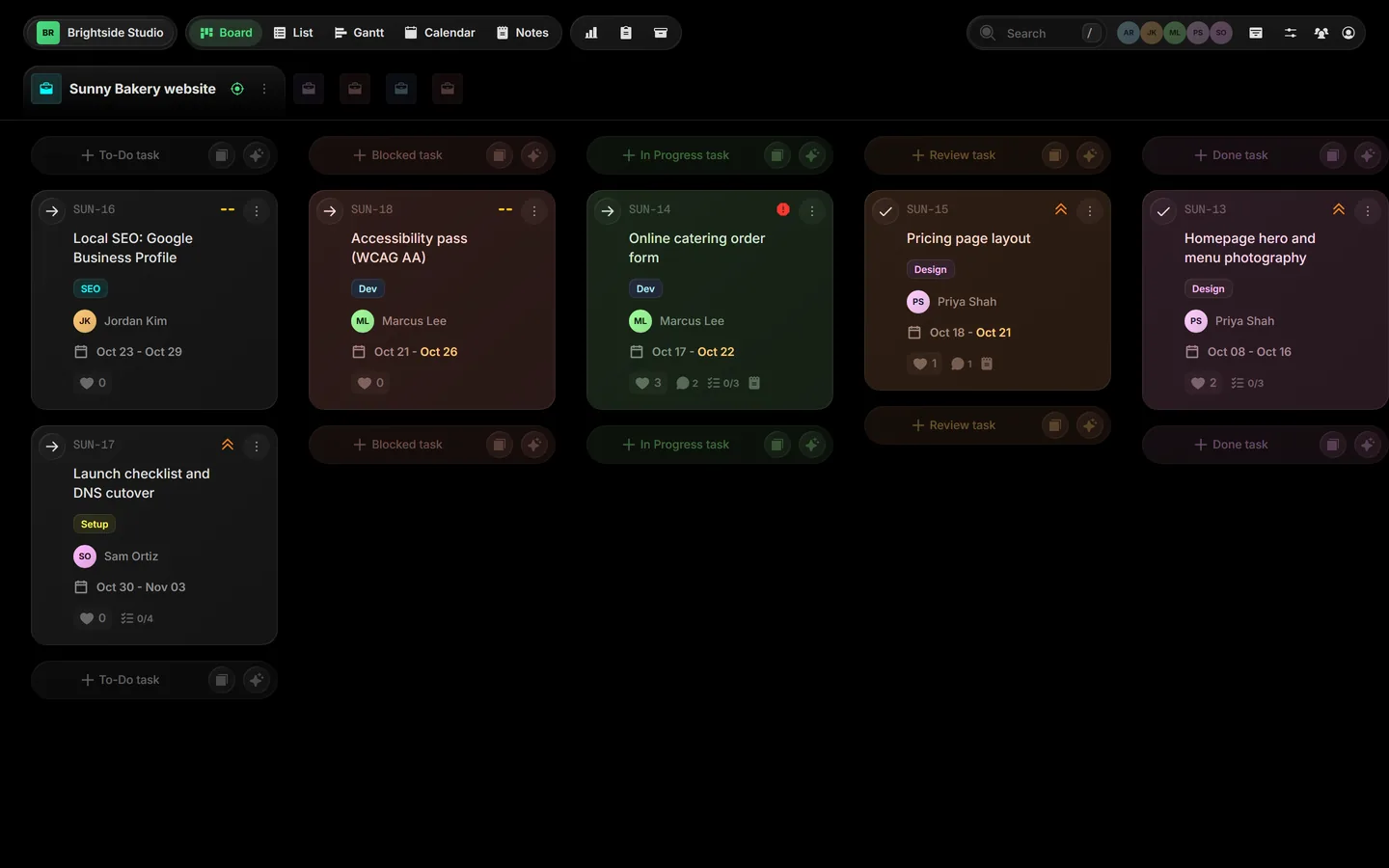
01Open Focus mode#
- Find the project on the board. Its name sits at the top of its column.
- Click the target icon next to the project's name.
 Close-up
FIG 2The target icon turns green while the project is in focus.
Or skip the mouse: Ctrl 1 to Ctrl 9 focuses your first nine projects, in board order.
02Work in status columns#
Every status in the project gets its own column, in the order set for the project. Drag a card from one column to the next to change its status.
Each column has its own + New task button, named after the status. A task you add there starts in that status, so a card added under Blocked is blocked from the start.
Close-up03Watch task limits#
If a status has a task limit, its column shows how many tasks it holds against that limit. When a column goes over, it stands out right away, which makes Focus mode a quick way to spot where work is piling up.
04Switch projects#
Your other projects line up as small icons to the right of the focused one. Click an icon to focus that project instead. You stay in Focus mode the whole time.
Close-up05Leave Focus mode#
Click the green target icon again, or switch views with Ctrl B. The board comes back with every project side by side.