Archive
Archiving takes finished work off the board without losing it. You can bring any archived task back.
01Archive a task#
Open the task's ··· menu and pick Archive Task. You can also archive from the card's menu on the board.
02Archive in bulk#
A project's ··· menu has three options:
| Archive Done Tasks | Clears out everything in a done status. |
| Archive All Tasks | Archives every task in the project. |
| Archive Project | Takes the whole project off the board. Its tasks are kept and the project can be restored. |
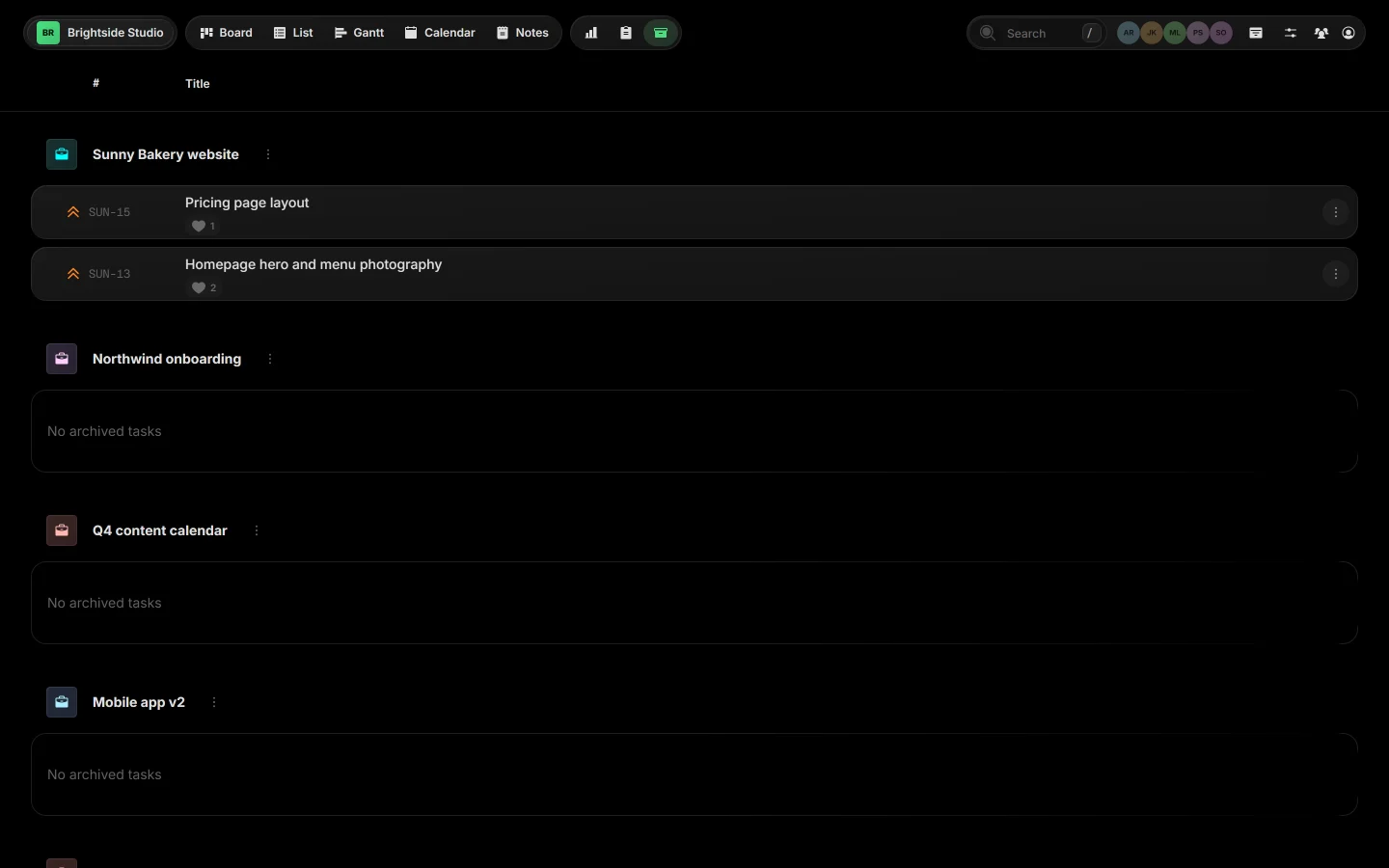
03The Archive view#
Click the archive button at the end of the view bar, or press Ctrl A.
 Close-up
04Archived tasks are read-only#
An archived task opens read-only. A banner shows when it was archived and, if your workspace removes old archived tasks after a while, the date it will be deleted.
05Bring a task back#
Open the archived task and pick Unarchive Task. Taskift asks you to confirm, then the task goes back on the board.
Heads up Archived tasks may be deleted for good after your workspace's retention period. Unarchive anything you still need before then.
Related guides
Archive a projectComing soonBoard viewAll projects side by sideKeyboard shortcutsEvery key in one placeEdit a taskComing soon
Was this page helpful?