Board view
The board shows your projects side by side. Each project has its own color, its own statuses and its own tasks.
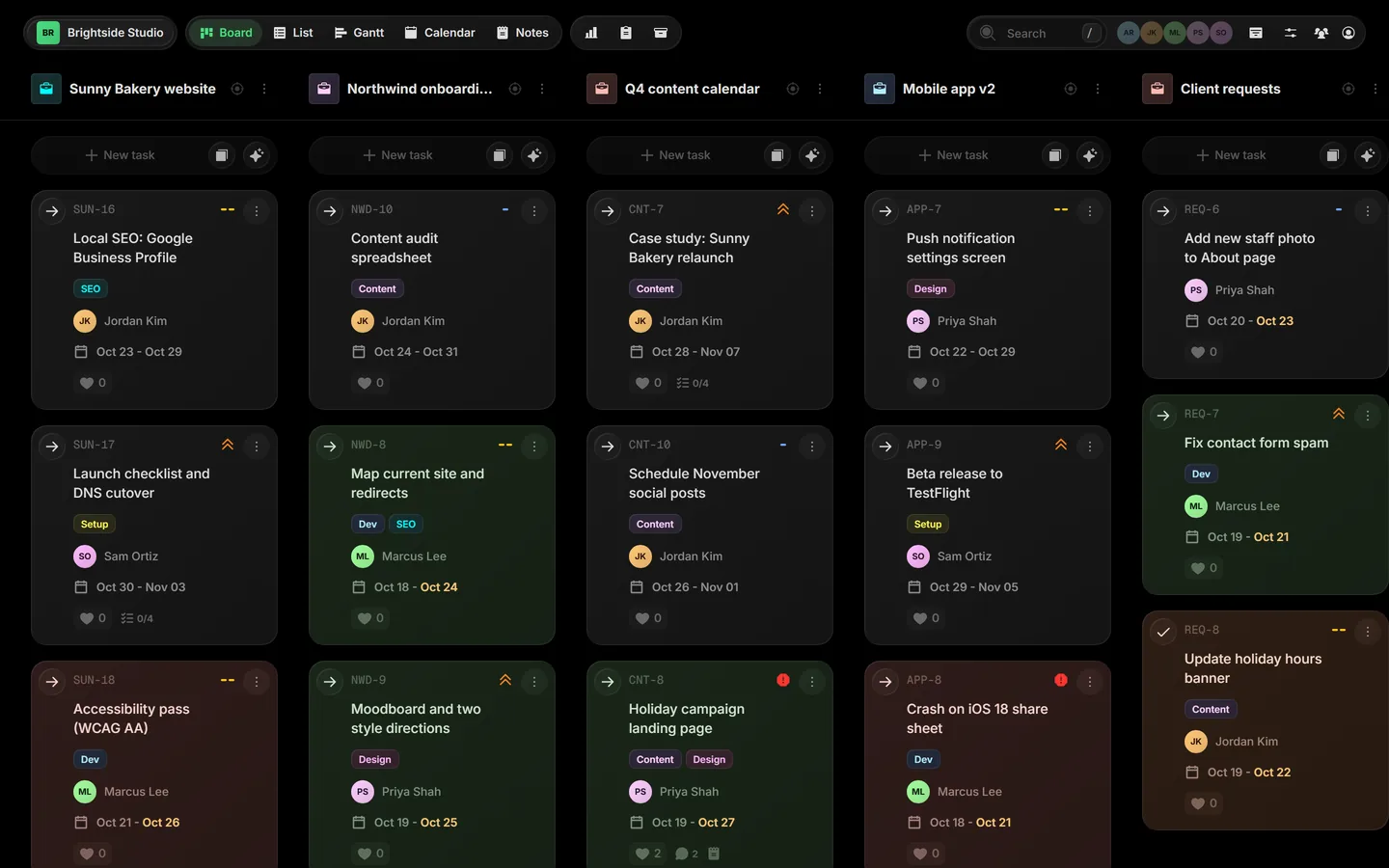
01Open the board#
Click Board in the view bar at the top, or press Ctrl B.
 Close-up
02Read a card#
Each card is a task. It shows the task key, the title, and whatever you have set: the assigned person, dates, priority, tags and a count of comments and checklist items. Click a card to open the task.
03Add a task#
Each project has a + New task button. Click it, type a title and press Enter. The field stays open for the next one, and Esc closes it. You can also press C anywhere on the board.
04Move work#
Drag a card to move it. Drop it in another project to move the task there, with its comments, files and history.
05Focus on one project#
Click the target icon next to a project's name to open Focus mode: just that project, one column per status.
06Make it bigger or smaller#
Open View settings in the top bar. The Size slider scales the whole app, so you can fit more on screen or make text easier to read.
 Close-up