Calendar view
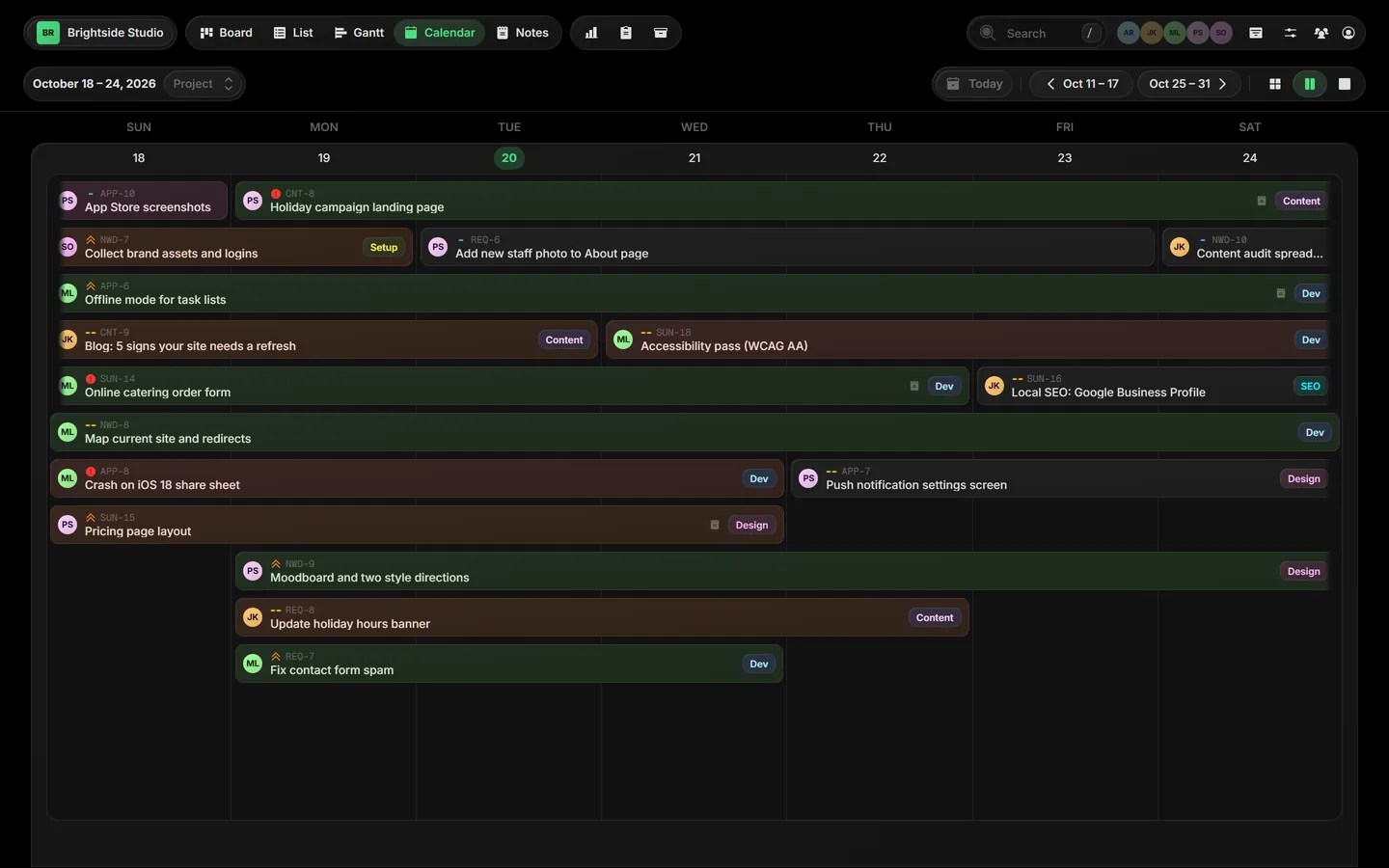
The calendar shows your tasks on the days they happen. Drag a task to another day to reschedule it.
01Open the calendar#
Click Calendar in the view bar, or press Ctrl C.
 Close-up
02Month, week or day#
Switch between a month, a week or a single day. Tasks with a start and a due date stretch across the days in between.
03Reschedule#
Drag a task to another day. Its dates move with it and its length stays the same.
04Add a task on a day#
Click + New task on a day. The task gets that day as its date.
05Pick projects#
Use the Project picker next to the date range to narrow the calendar to the projects you choose.
06Busy days#
In month view you can cap how many tasks show per day. Extra tasks fold into a more button that opens the full list.
Related guides
Gantt viewTasks on a timelineCreate a taskComing soonRecurring tasksComing soonBoard viewAll projects side by side
Was this page helpful?