Create your workspace
A workspace is your company. Everything else, from boards to clients, lives inside it. Setting one up takes about a minute.
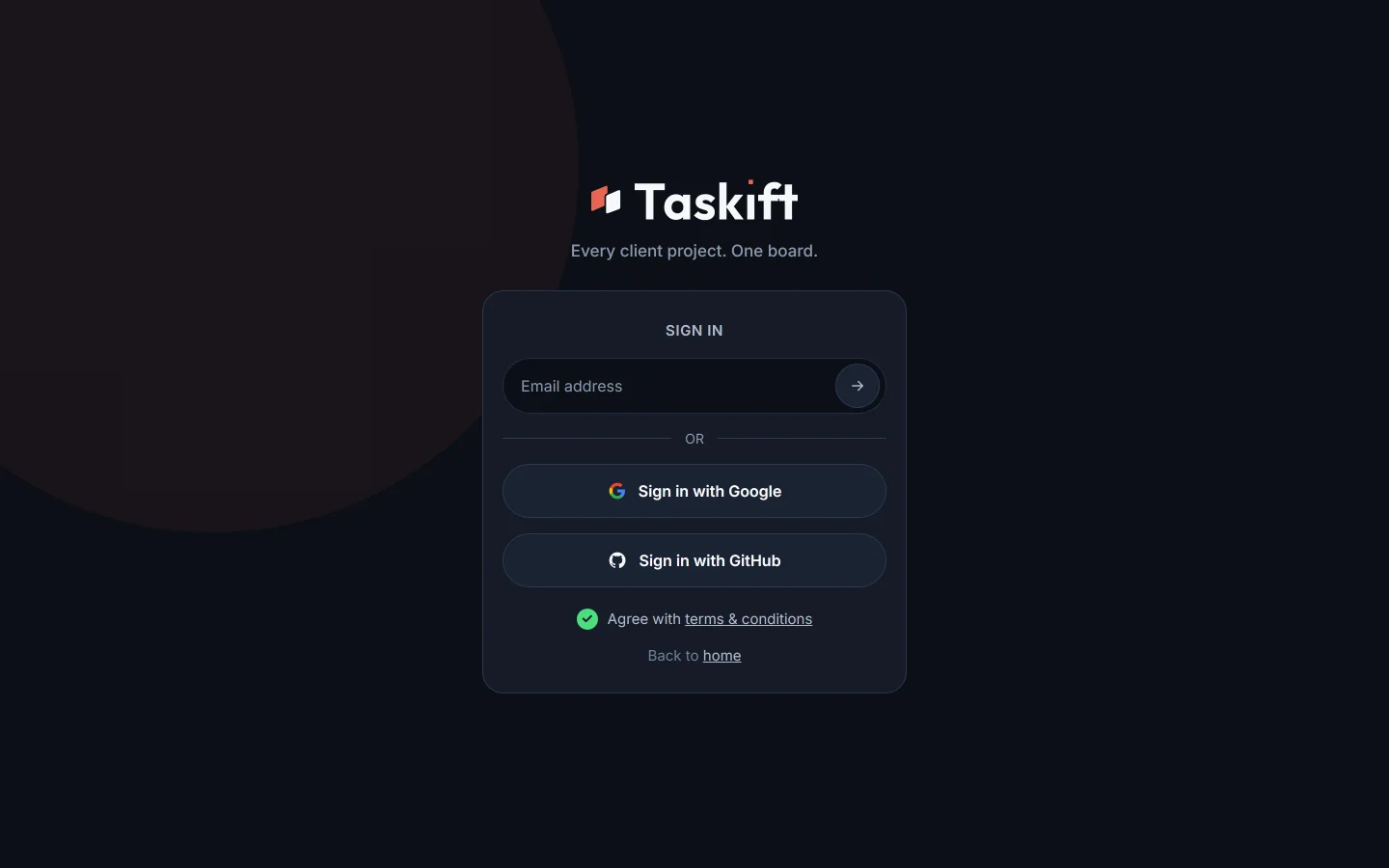
01Sign in#
Go to app.taskift.com. There is no password to create or remember.
- Type your email address and press Enter.
 Close-up
FIG 2Start with your email address. - Check your inbox. Taskift sends a 6-digit code. Type it in, or click the link in the email instead.
 Close-up
FIG 3The code works for 10 minutes.
Prefer one click? Use Sign in with Google or Sign in with GitHub. The first time you sign in, tick the box to agree to the terms.
02Name your workspace#
- Type your Workspace name, usually your company name.
- Check the Workspace address. Taskift suggests one from the name and checks it as you type. A green Available means it is yours.
 Close-up
FIG 4Your workspace lives at app.taskift.com/ plus this address. - Pick what kind of work this is for: MSP / IT services, Agency / studio, Freelancer, or Internal team.Close-up
FIG 5Pick the one closest to how you work. - Click Continue.
Tip Pick the address with care. It is the link you and your team will bookmark.
03What happens next#
You land on your new board as the workspace Owner. Next, invite your team.
Related guides
Was this page helpful?