Create a form
A form turns every submission into a task. Share it with clients or visitors and requests land on your board, already filled in.
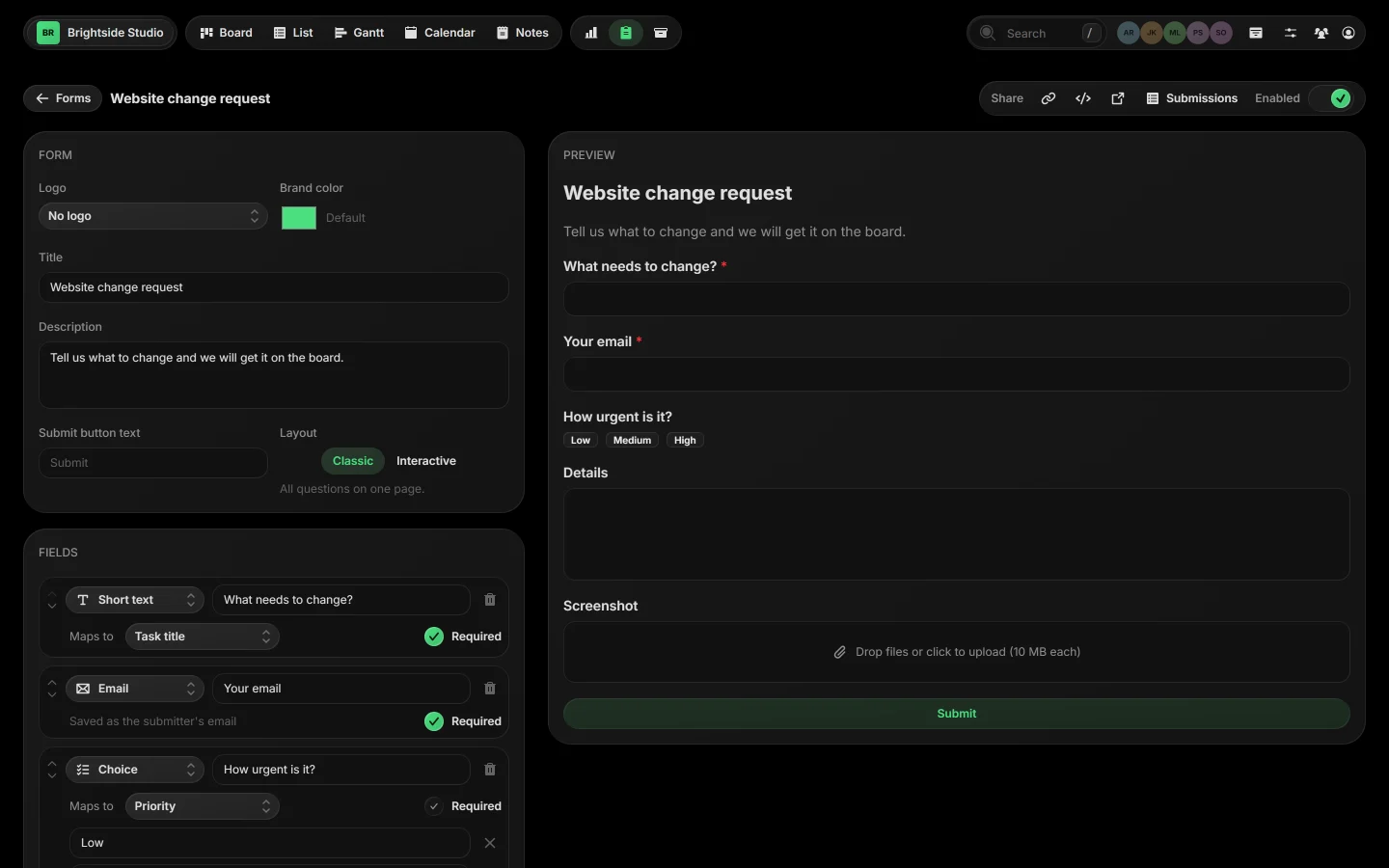
01Create a form#
- Open Forms from the view bar, or press Ctrl F.
- Click + New Form. The editor opens.
- Give the form a title and a description. The description is shown above the fields.
- Add your fields. See Fields and mapping.
Everything saves as you go. The preview on the right shows exactly what people will see.
02Make it yours#
| Logo | Show your logo at the top. |
| Brand color | The form's accent color. Default uses Taskift green. |
| Submit button text | The words on the button, like Send request. |
| Layout | Classic puts all questions on one page. Interactive asks one at a time. |
 Close-up
03Where tasks land#
Under Submissions, pick the Project and Status new tasks go to. A field can route a submission elsewhere, for example a Priority choice. See Fields and mapping.
04The thank-you message#
Set a Success title and Success message for people to see after they submit.
Related guides
Was this page helpful?