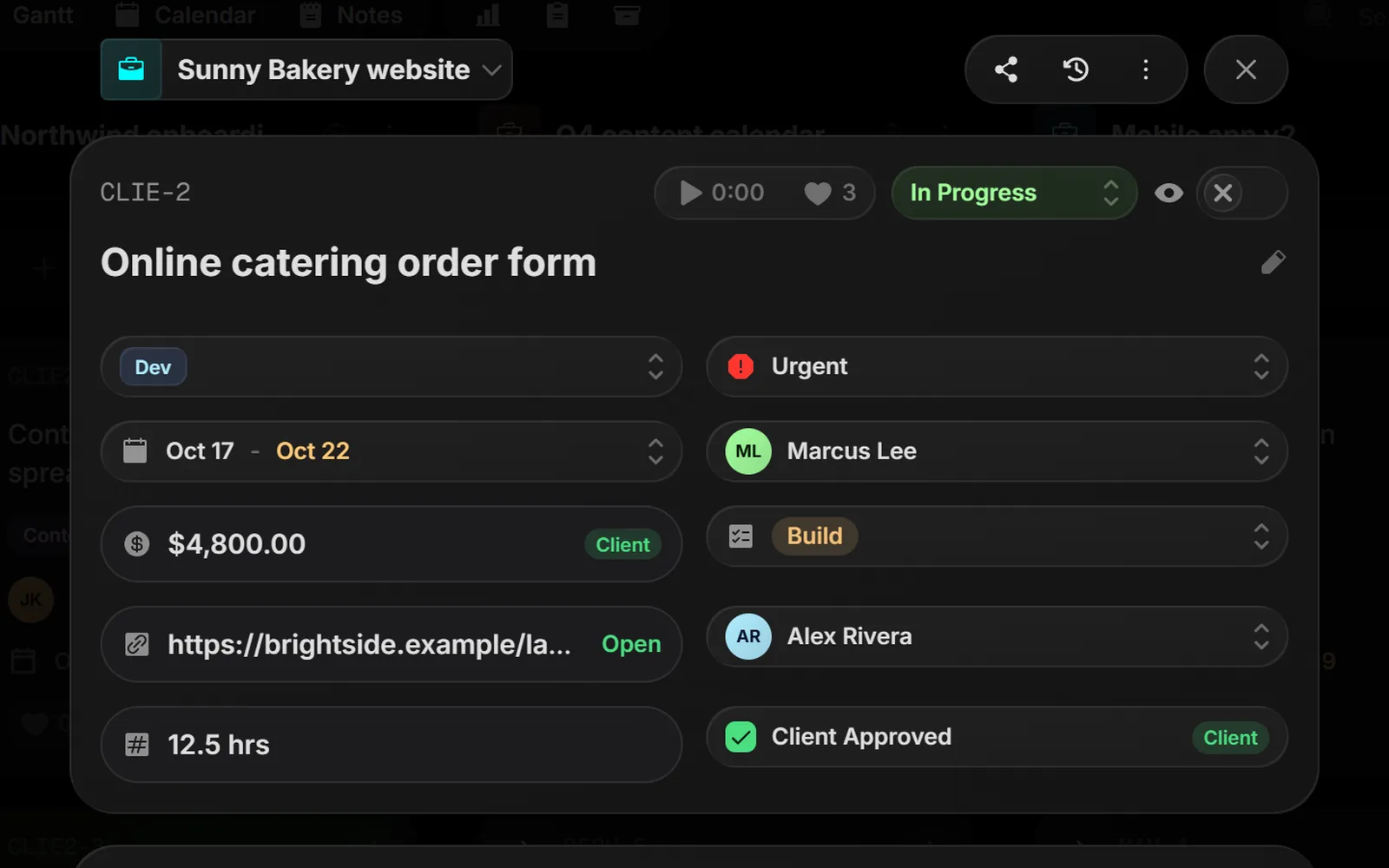
Board Settings has a new Properties tab. Turn the built-in fields on or off, put them in the order you want, and add your own: text, date, select, number, email, link, checkbox, toggle, person and money.
How it works
Switches per field: choose whether a field shows in filters, on cards and list rows, in quick edit, pinned to the top of the task, or to clients in their portal
Money and numbers: pick the currency, the decimals and a prefix or suffix like hrs; every task shows the value the same way
Select fields: colored options, one or several per task
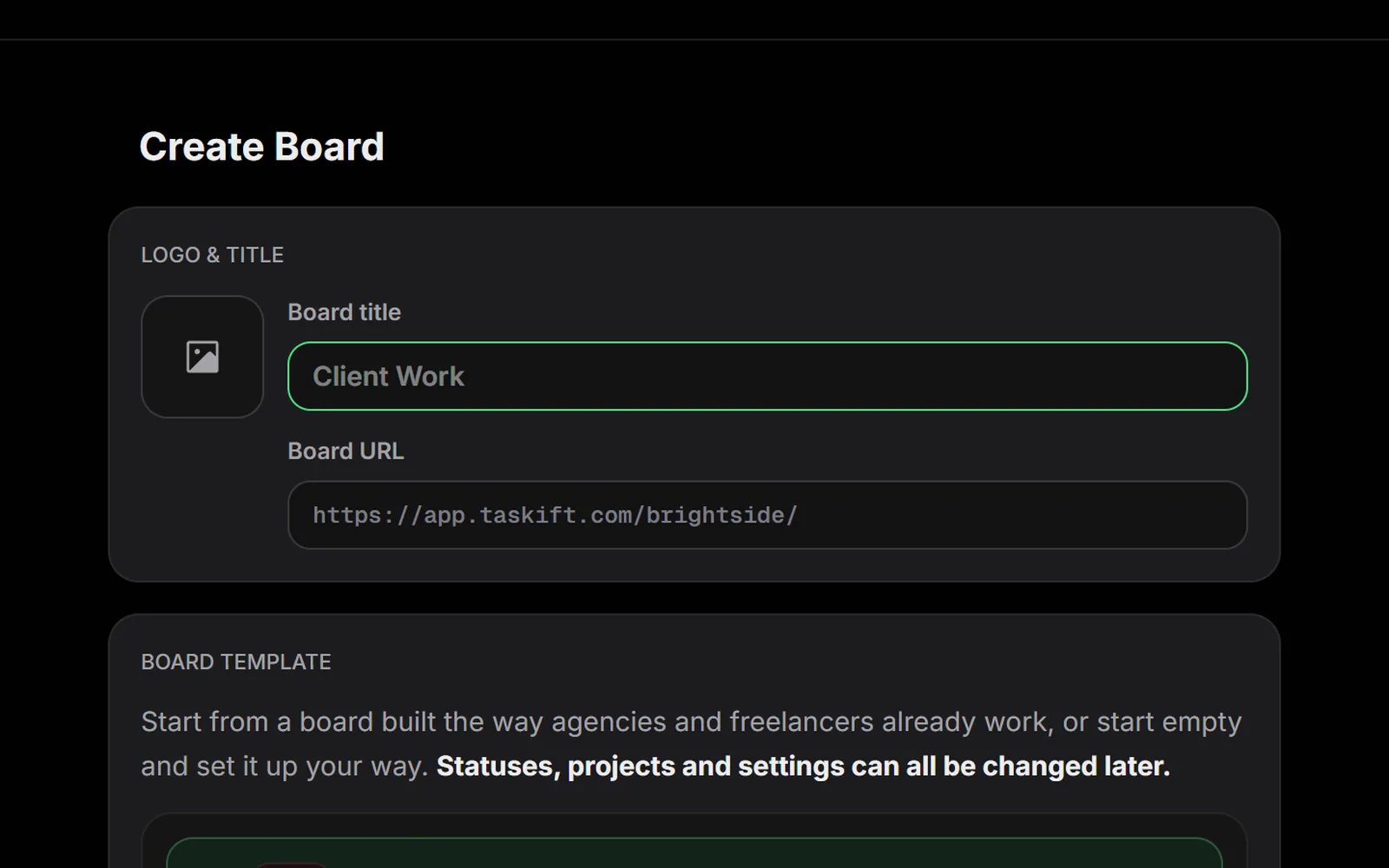
A workspace can now hold as many boards as you need, each at its own address. Start one empty, from a Taskift template, as a copy of a board you already run, or from a template ID someone shared with you.
How it works
Templates that come dated: pick the day the work starts and every starter task gets a real date, plus the request form, rules and milestones the template promises
Copy a board: takes the statuses, tags, task style, rules and projects. Tasks, clients and files stay where they are
Share as template: Board menu, Share Board, Create Template ID. Anyone with the ID can start from your setup
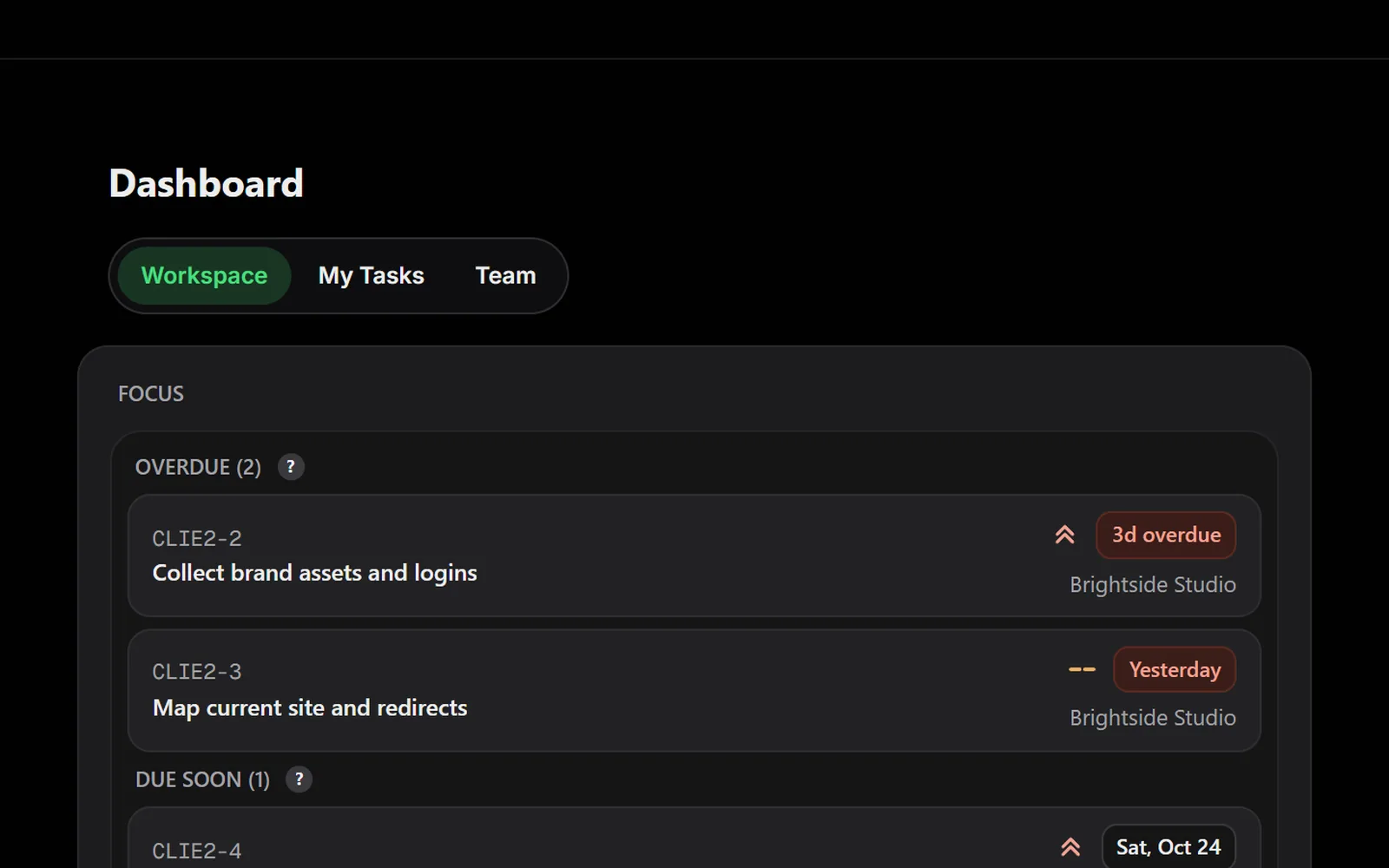
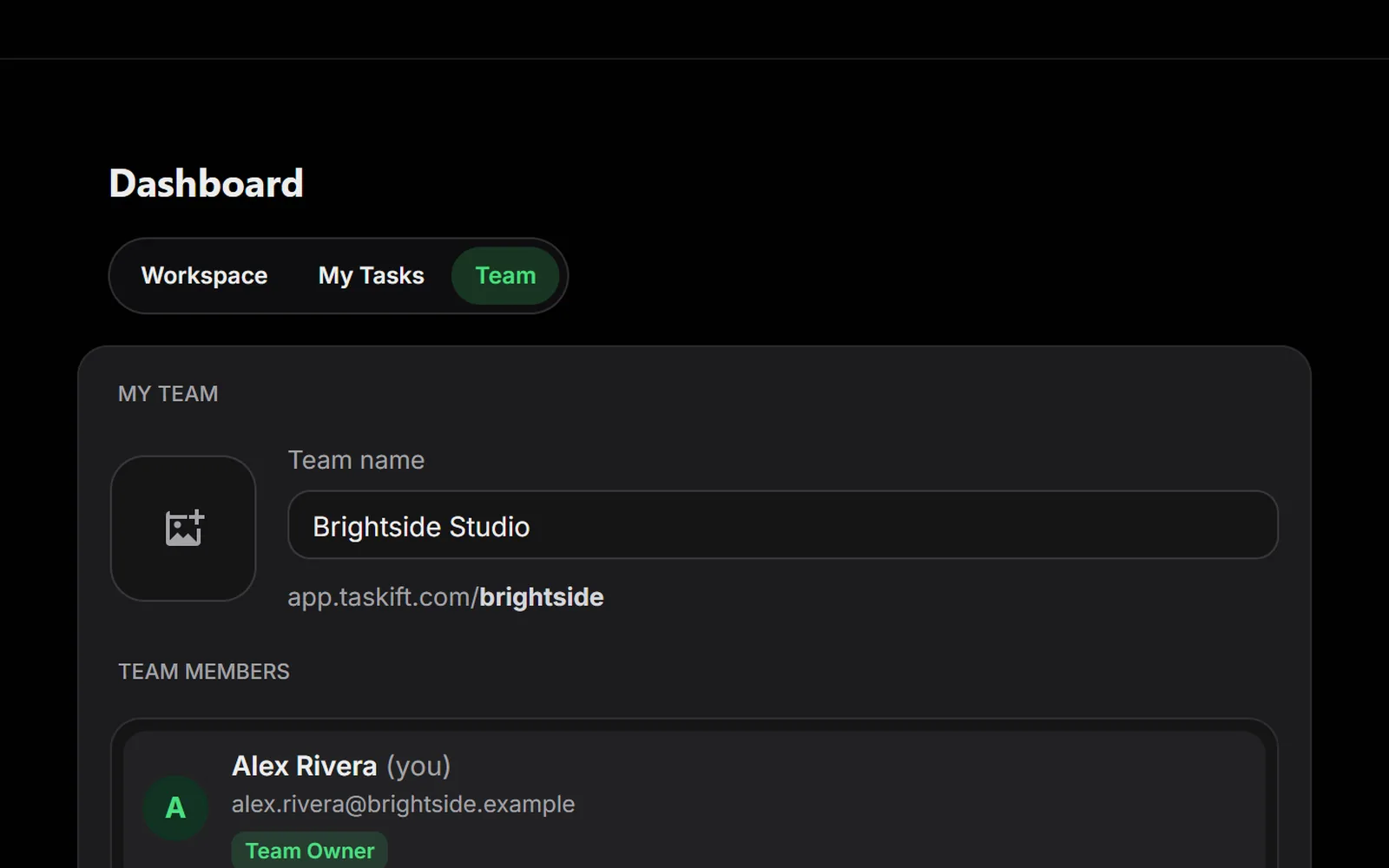
The dashboard now has three tabs. Workspace shows your boards and what's waiting on clients, My Tasks lists everything assigned to you across boards, and Team shows each person's open work.
Every public form now opens on a clean page at its own short link, with your logo, so you can send it to a client or put it on your site. Each submission still lands as a task.
Turn on a read-only link for a project and anyone with it can follow along in Board or List view, no account needed. Comments, files, people and time stay private, and making a new link switches the old one off.
The board, task panel, calendar, Gantt and client portal were reworked for small screens: views sit in a bottom bar, nothing scrolls sideways, and buttons turn into icons where space is tight.
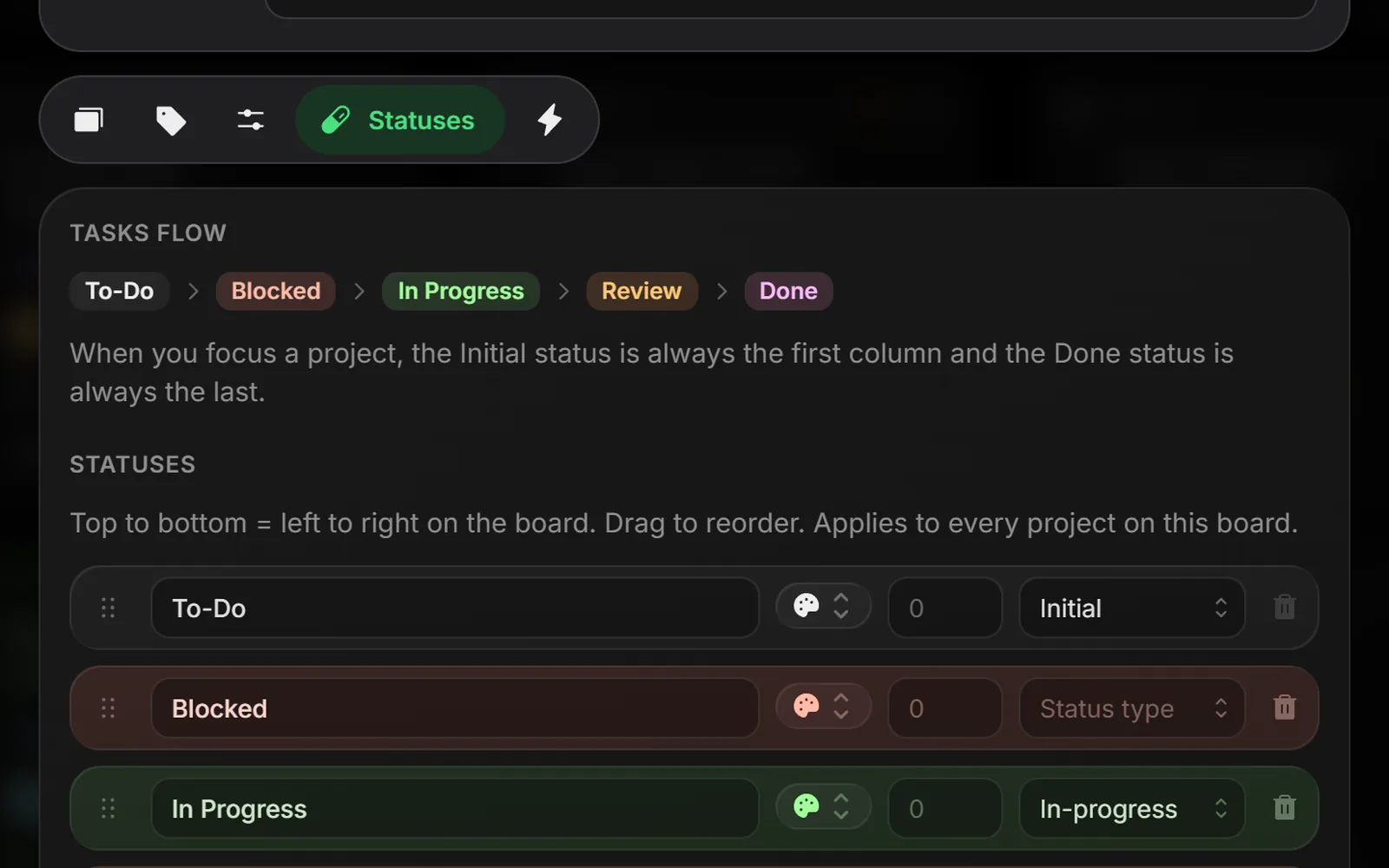
Each board has its own task flow. Rename, recolor and reorder statuses, mark which one is the start and which one means done, and cap how many tasks can sit in a column.
How it works
Task limits: set a maximum on a status like Waiting on Client so work doesn't pile up out of sight
Status types: Initial, In Progress and Done drive Focus, reports and the client portal
Invite a client to a project and they get their own view of it: the tasks you share, approvals waiting on them, comments and files. Clients are free and never see your other work.
One page for everyone on your team: members and their roles, clients and what they can see, invites waiting to be accepted, and the tokens your AI agents use.
Web design agency, MSP helpdesk, content calendar, software sprint, client onboarding and AI agent workspace. Each one sets up statuses, phased tasks, milestones, a request form and a few rules.
Click the target icon on a project and the board shows just that project, with a column for each status. Drag cards between statuses, or walk a client through their own work.