Email to task
Every project has its own email address. Send or forward an email to it and it becomes a task. Send to a task's address and it becomes a comment on that task.
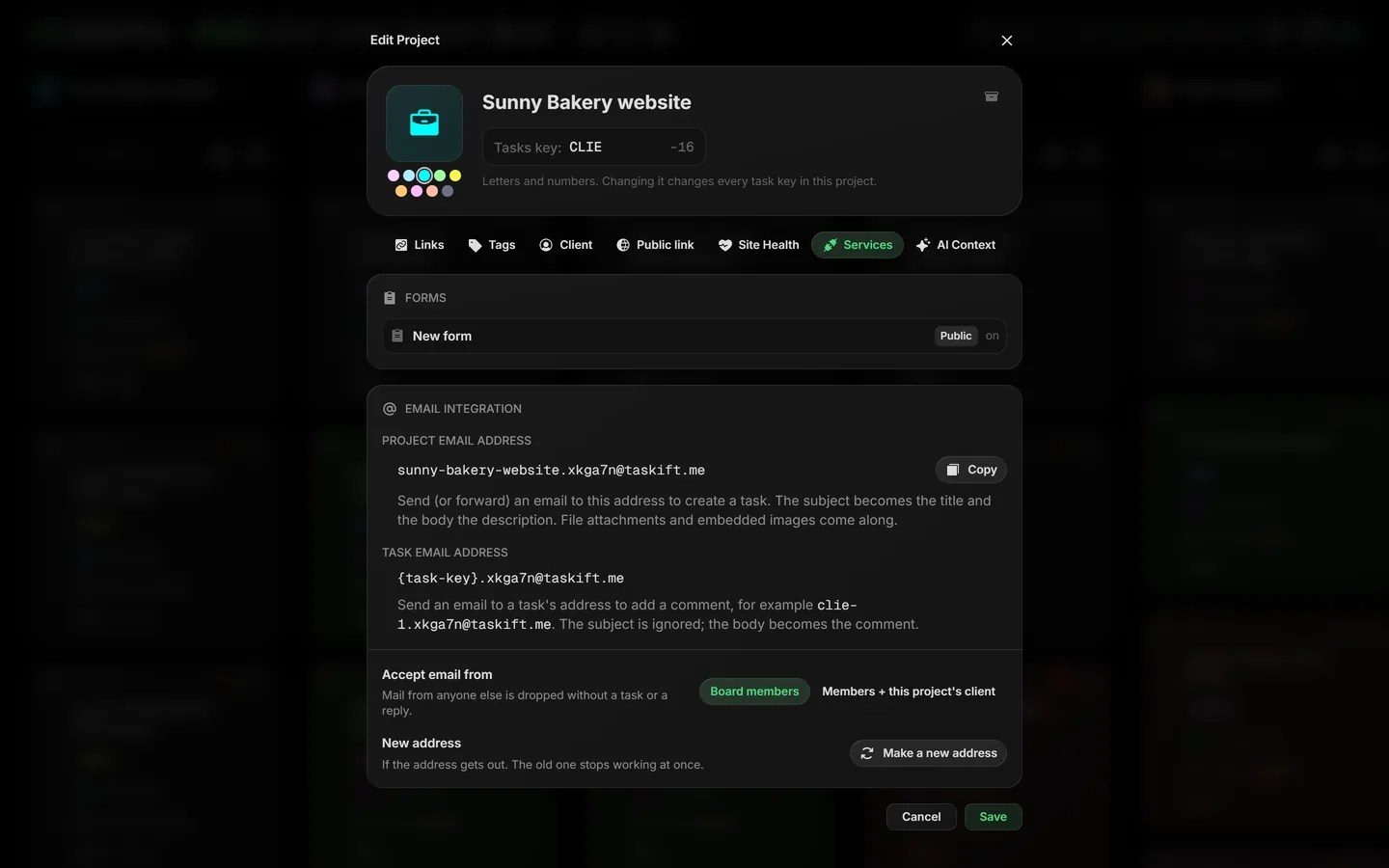
01Find the project's address#
- Open the project's menu on the board and pick Edit Project.
- Open the Services tab.
- Under Email integration, click Copy next to the project email address.
The address looks like [email protected]. The first part follows the project's name; the random part after the dot is what makes it yours.
02Email in a new task#
Send or forward an email to the project's address. The subject becomes the task title and the body becomes the description. Images and PDFs attached to the email, or pasted into it, are added to the task as files.
03Email a comment onto a task#
Every task has an address too: the task's key in place of the project name, for example [email protected]. Email it and the body is added as a comment on that task. The subject is ignored, and the quoted thread below a reply is left out.
04Who can send#
Accept email from sets who the address listens to:
- Board members: owners, admins and members of the workspace.
- Members + this project's client: also the client guests this project is shared with. Their emails arrive marked as client requests, and the client can see them in their portal.
 Close-up
Mail from anyone else is dropped without a task or a reply, so a stranger who guesses the address learns nothing. Taskift also checks that the email really came from the sender's domain, so a forged From line doesn't get through.
05Make a new address#
If the address gets out, click Make a new address and click again to confirm. The old address stops working at once; update anywhere you saved it.