Public task links
Make one task viewable by anyone with its link, no sign-in. You choose what the page shows, and you can stop sharing at any time.
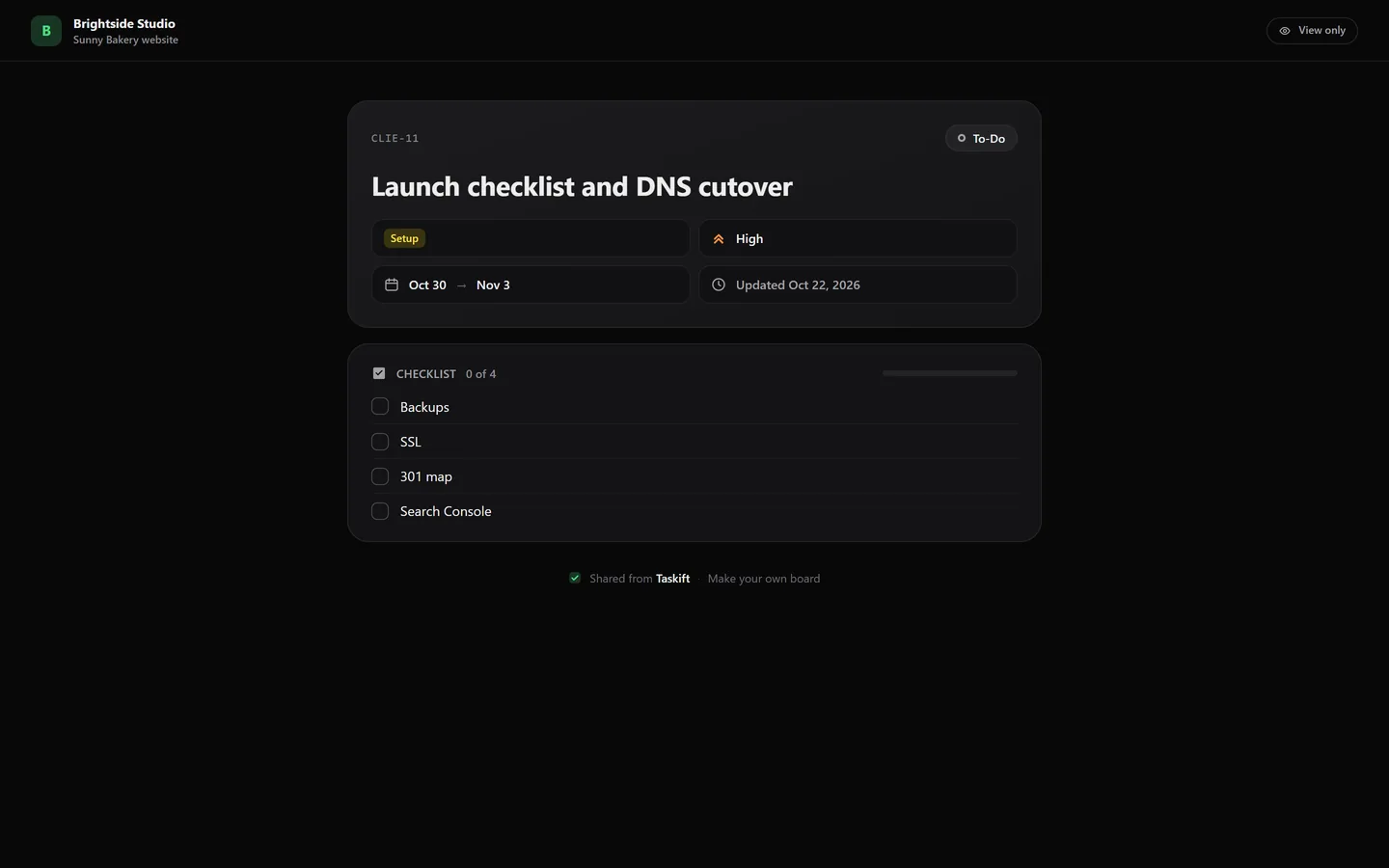
01Turn public links on#
Public task links are off for every new workspace. The workspace owner turns them on in Dashboard › Settings › Sharing with Allow public task links, then picks what a public page may show: description, checklist, start and due dates, comments and files.
02Make a task public#
- Open the task and click Share at the top of the panel.
- Click Create Public URL…
- Check the list of what the page will show and switch off anything you'd rather keep private.
- Click Make public. The link is ready to copy.
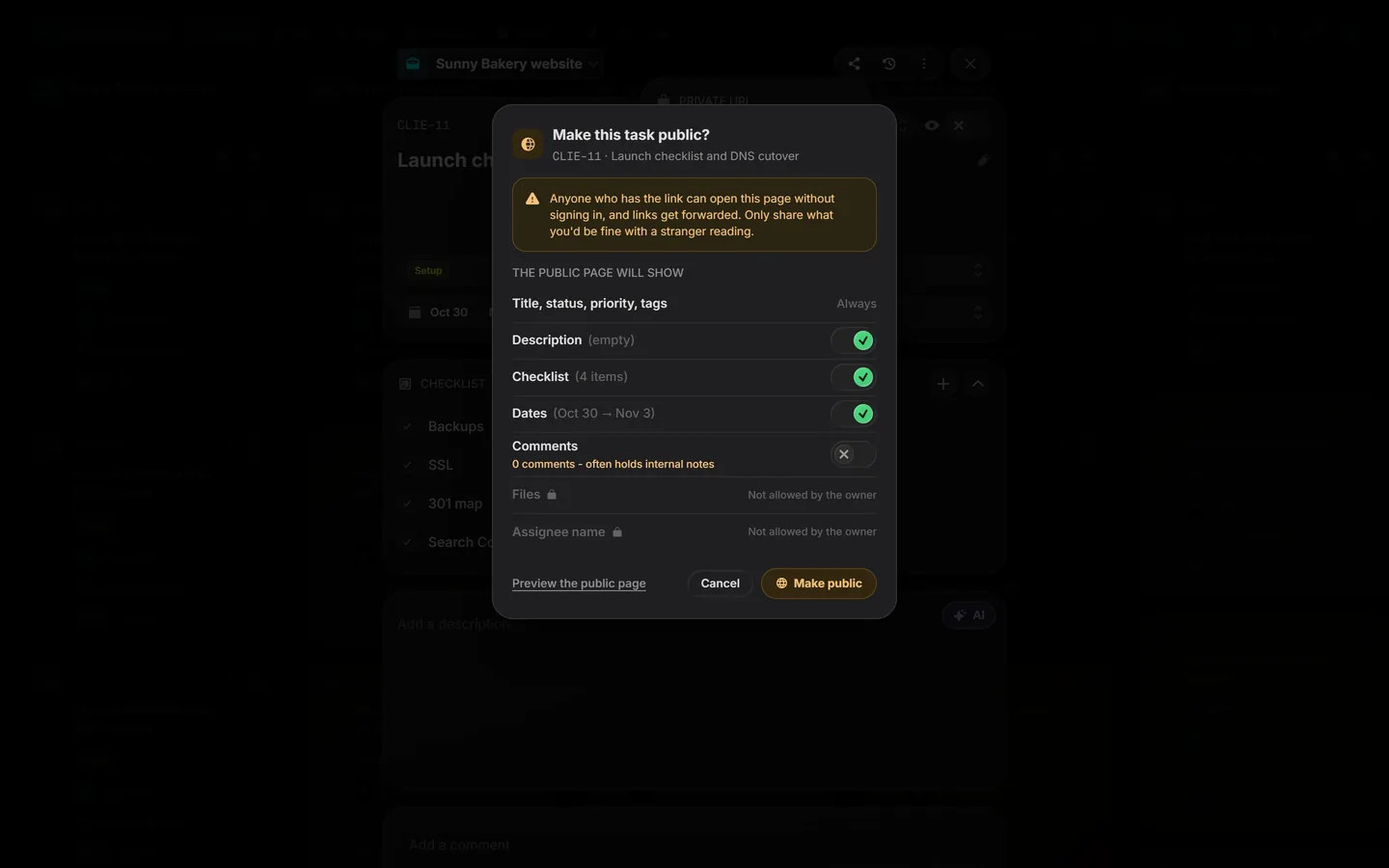
Title, status, priority and tags are always shown. Details the owner hasn't allowed are locked and marked Not allowed by the owner. Click Preview the public page to see it exactly as a visitor will.
03While it's live#
The Share panel shows a LIVE badge, how many times the page was opened and when it was last opened. From there you can copy or open the link, use Change what’s shown, or stop sharing.
04Stop sharing#
Click Stop in the Share panel, then click again to confirm. The link stops working right away. The owner can also see every live link in Settings › Sharing and turn them all off in one click.