Tips and shortcuts
A few habits that make Taskift feel fast. None of them are required, but people who learn them rarely go back.
IN THIS CHAPTER YOU'LL LEARN
- AFind anything with /
- BFocus on one project
- CFilter and save presets
- DLearn six shortcuts
AFind anything with /
Press / anywhere on the board and start typing. Results show tasks by title, key or description, then notes and comments. Use the arrow keys and Enter to open one.
The avatars next to the search box are your team. Click one to see only that person's tasks. Click it again to see everyone.
BFocus on one project
Click the target icon next to a project's name. That project opens with one column per status, so you can drag work from To-Do to Done.
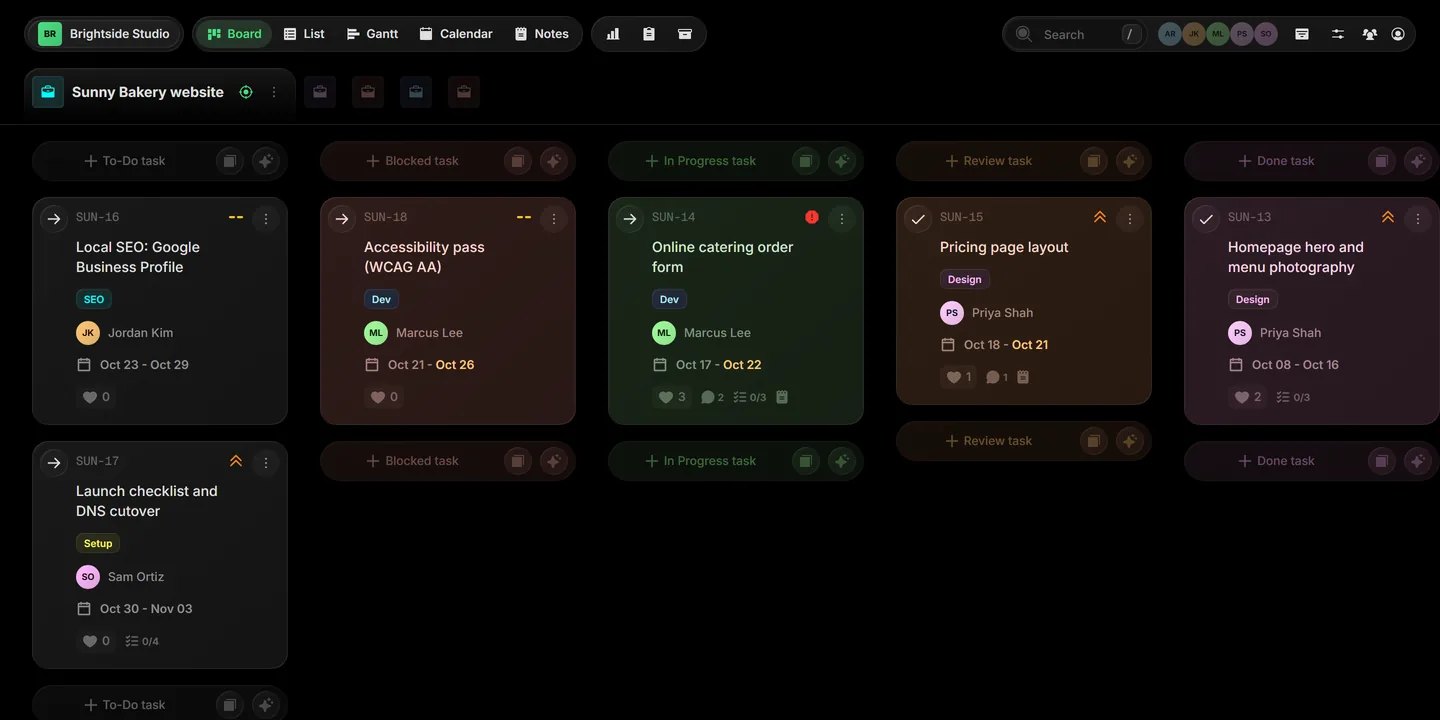
Press Ctrl 1 to Ctrl 9 to jump to your first nine projects. Click the green target again to go back to the board.
CFilter and save presets
Click the filter button in the top bar to narrow the board by title, status, tags, priority, person or dates. Filters combine.
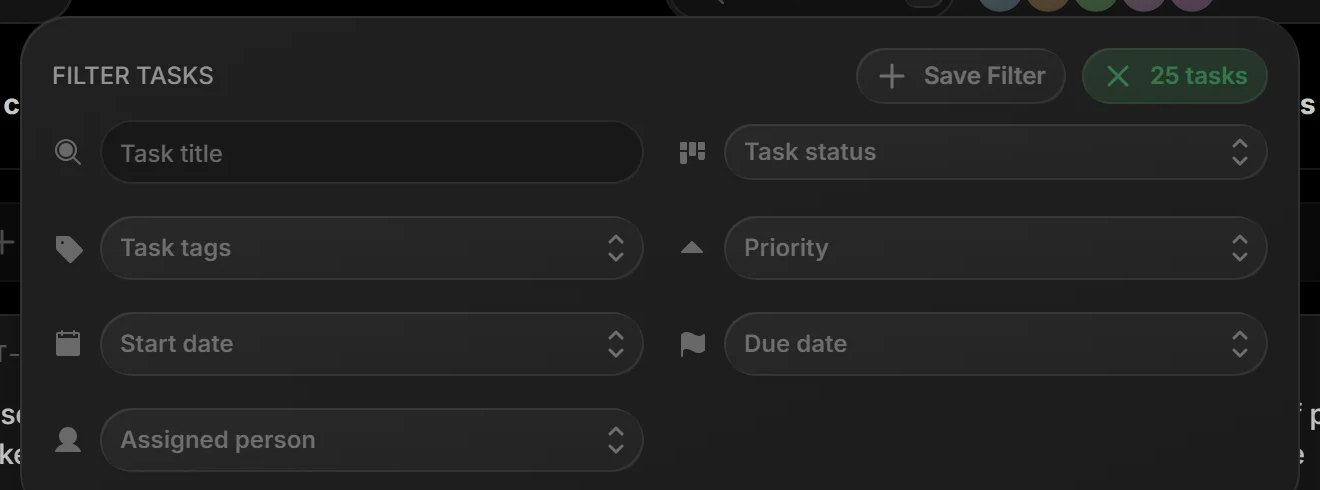
Filters clear when you reload, so you never come back to a half-empty board. Use one often? Click + Save Filter to keep it as a preset.
DLearn six shortcuts
Press ? anywhere to see them all. These six cover most of the day:
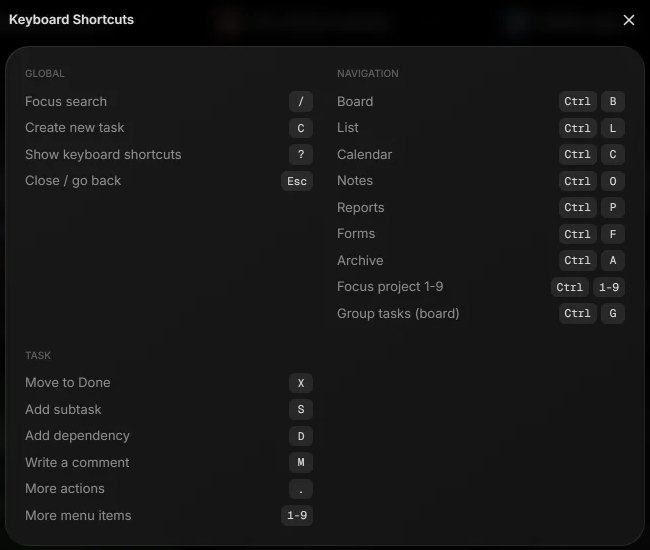
On a Mac, use Cmd instead of Ctrl.
That's the guide.
You know your way around Taskift. Look things up any time in the docs.
Browse the docs
Every feature, step by step, with screenshots.