Learn the board basics
Taskift has four building blocks: boards, projects, tasks and statuses. Learn these and you know your way around.
Sunny BakeryB
To-DoD
In Progress
Northwind
Review
In Progress
Q4 content
Done
To-Do
IN THIS CHAPTER YOU'LL LEARN
- AWhat is a board?
- BWhat is a project?
- CWhat is a task?
- DWhat is a status?
AWhat is a board?
A board is where your team's work lives. Instead of making a separate board for every client, Taskift puts all your client projects on one board, side by side. You see the whole week in one place.
Most teams only ever need one board.
BWhat is a project?
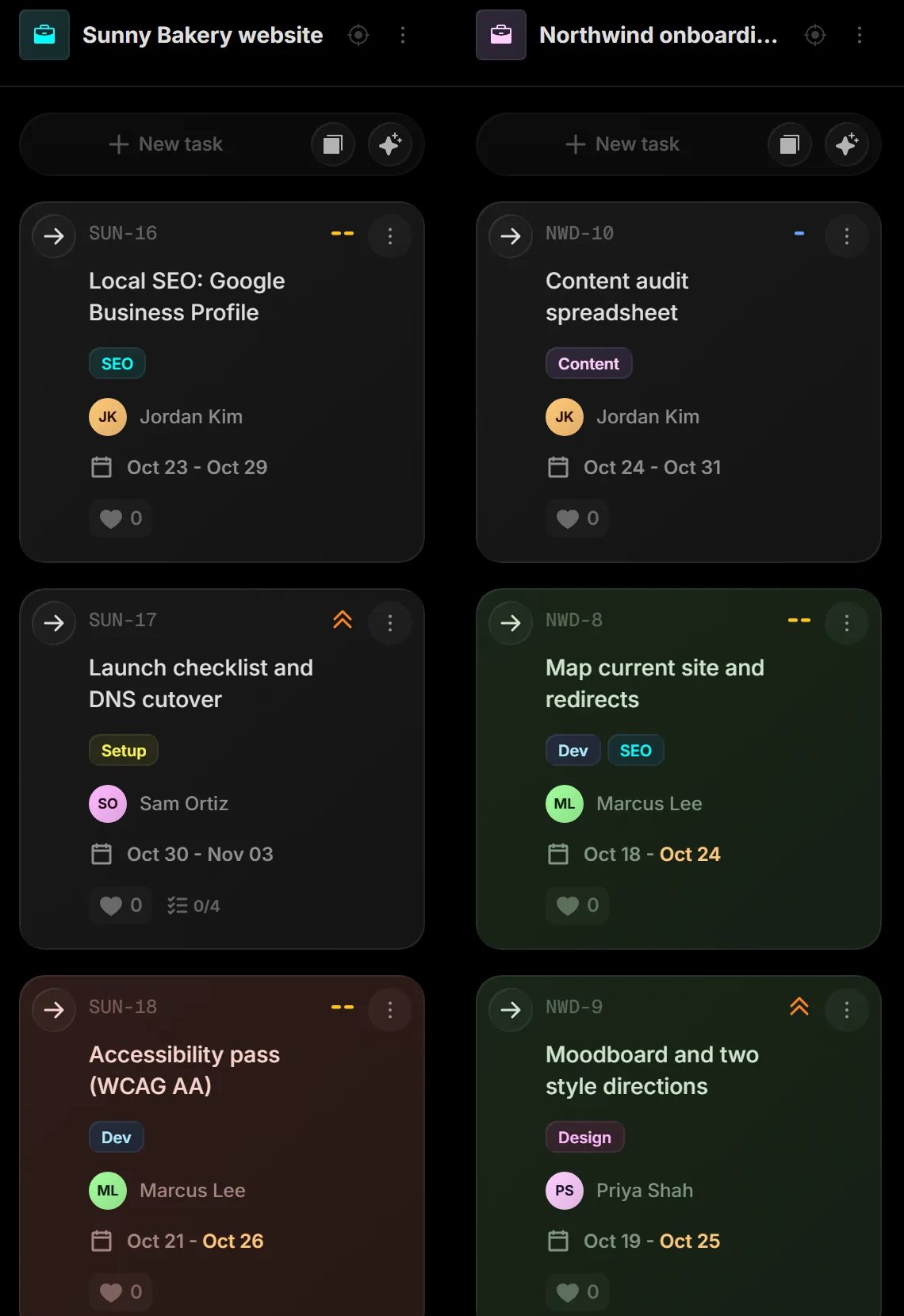
A project is a column on the board. Most teams make one project per client, like Sunny Bakery. Each project has its own color, so you can tell clients apart at a glance.
To add work to a project, click New task at the top of its column.
CWhat is a task?
A task is one piece of work, like Update holiday hours banner. Click a task to open it, then add a description, a checklist, files and comments.
Without opening it, the card shows you:
- Who is working on it
- When it starts and when it's due
- Tags, like SEO or Design

PRO TIP
Drag a task to another project's column to move it there.
DWhat is a status?
A status shows how far along a task is. Every new board starts with these five:
As the work happens, move the task forward until it reaches Done. Every project on the board uses the same statuses, so "In Progress" means the same thing for every client.
You can rename statuses or add your own. That's in chapter 2.
Sounds simple? It is.
Now let's set up a real client project.
Set up your first client project
Start blank or from a template, then add tasks, dates and people.