Automate the busywork
Rules do the small updates nobody wants to do by hand. Recurring tasks make the work that comes back every week, so nobody has to remember it.
IN THIS CHAPTER YOU'LL LEARN
- AAdd a rule
- BChoose when it runs
- CChoose what it does
- DRepeat work on a schedule
AAdd a rule
Click your board's name at the top left, pick Board Settings and open Automation.
- Click + Add Automation and give the rule a name.
- Pick a Trigger: when the rule runs.
- Pick a Scope: the whole board, or one project.
- Add what the rule should change.
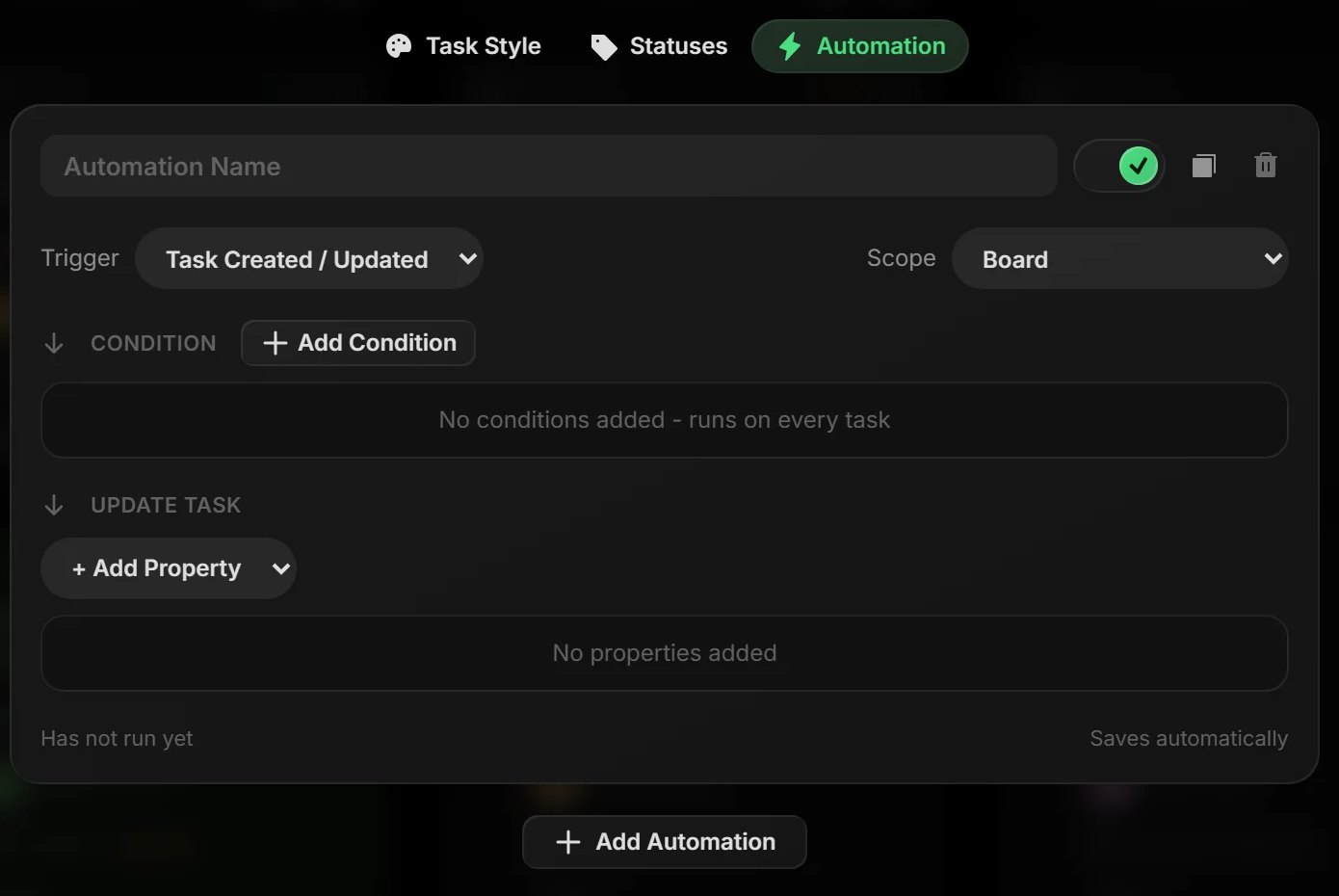
Each rule has its own on/off switch, and shows how many times it has run.
BChoose when it runs
- Task Created / Updated
- Runs when a task is added or changed.
- Due Date
- Runs a set number of days before or after a task is due.
- Schedule
- Makes a new task on a schedule. See recurring tasks below.
With no conditions, a rule runs on every task. Click Add Condition to narrow it down, for example to one status, tag or person, or to tasks that came from a form.
CChoose what it does
- Update task: set the person, priority, status or tags, or push a date out a number of days
- Send a notification: for due-date rules, an email and push alert with the task and its due date
PRO TIP
A good first rule: Task Created, condition Created By: A form, set priority to High. Every request from a form gets looked at first.
DRepeat work on a schedule
For the weekly report or the monthly backup check, let a schedule make the task.
- Add an automation and set Trigger to Schedule.
- Pick the project under Scope.
- Pick Every Day, Every Week or Every Month, and a time.
- Write the task title and pick its starting status.
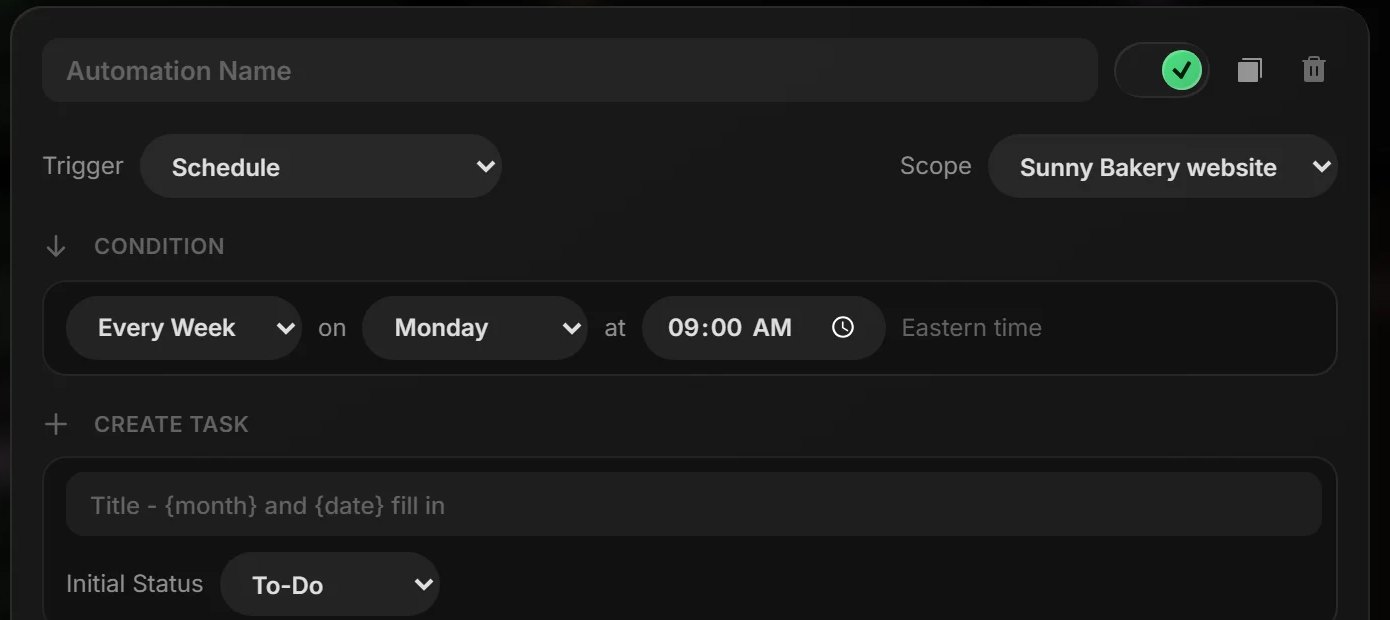
Put {month} or {date} in the title and Taskift fills it in, so the task reads Monthly report, October 2026. Schedules run on US Eastern time.
The board runs itself a little now.
Next, hand some of the work to AI.
Put AI agents to work
Connect Claude, ChatGPT or Gemini and hand them real tasks.