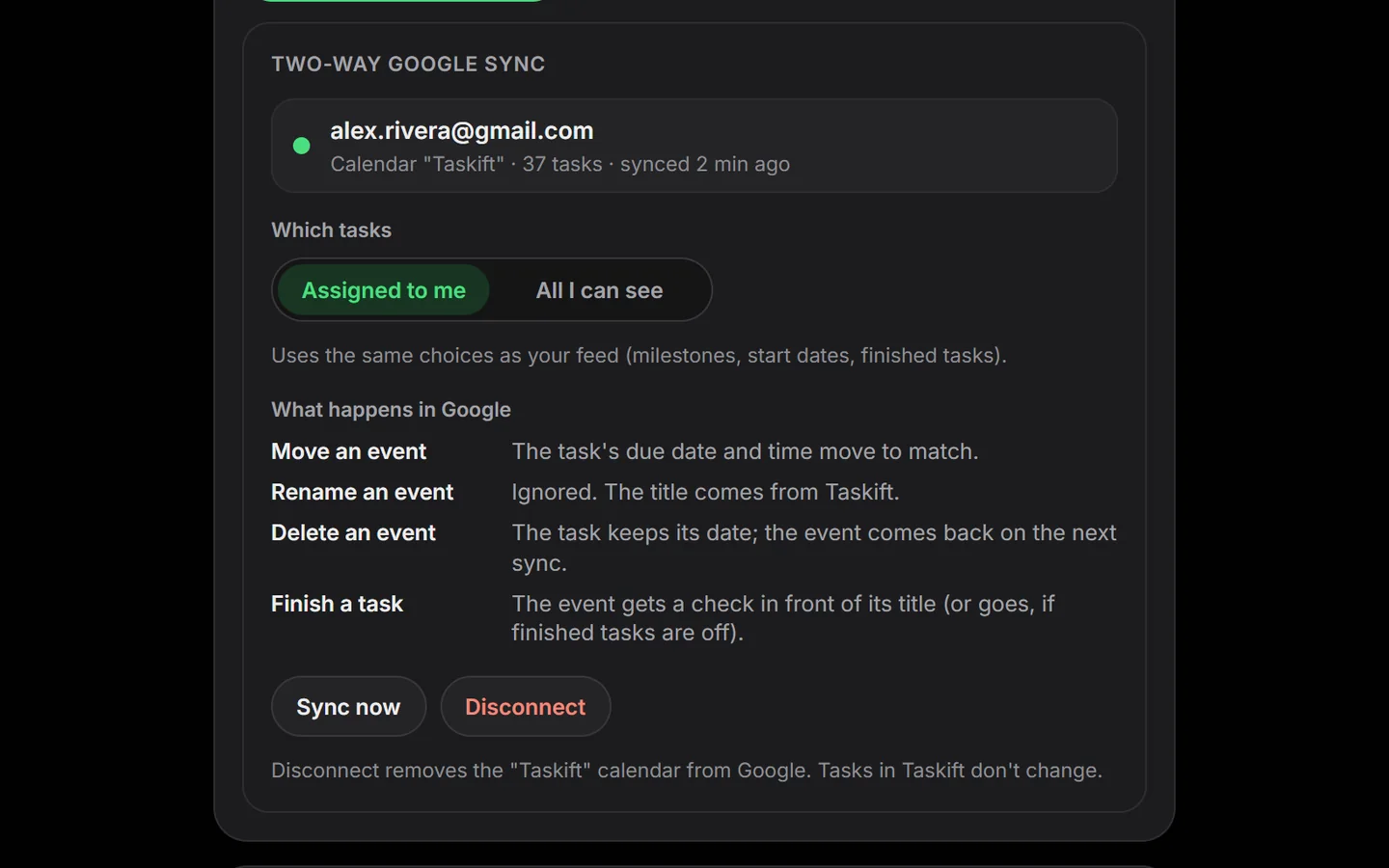
On November 7 we put your Taskift due dates in your calendar, one way. As of today it goes both ways in Google Calendar. Your tasks land in a calendar called "Taskift", and when you drag an event to another day, the task moves too. It's included in every plan.
1. Why two-way
Most people plan their week in their calendar. When a deadline slips, that's where they drag it. With a one-way feed, the board never hears about it, and somebody has to fix the date twice. Now the calendar and the board agree without anyone retyping a date.
2. Turn it on
- Open Account and scroll to Calendar.
- Under Two-way Google sync, click Connect Google Calendar and pick your Google account.
- Choose Assigned to me or All I can see. Milestones, start dates and finished tasks follow the same switches as the calendar feed.
The first sync takes about a minute. After that Taskift checks every couple of minutes, and Sync now is there when you don't want to wait.
3. What happens when you change things in Google
- Move an event: the task's due date and time move to match, and the task's activity says the change came from Google Calendar.
- Rename an event: ignored. The title comes from Taskift.
- Delete an event: the task keeps its date, and the event comes back on the next sync.
- Finish a task: the event gets a check in front of its title, or goes away if finished tasks are off.
4. What stays private
- Only its own calendar. Taskift asks Google for the narrowest calendar access there is: the calendar Taskift creates. It can't see or change your other calendars.
- Only what the event needs. Titles, task keys, project names, dates and a link back to the task. No descriptions, comments, files, assignees or client names.
- Easy to undo. Disconnect removes the "Taskift" calendar from Google. Your tasks in Taskift don't change.
The details are in our privacy policy, and the step-by-step guide is in the docs: Google Calendar.