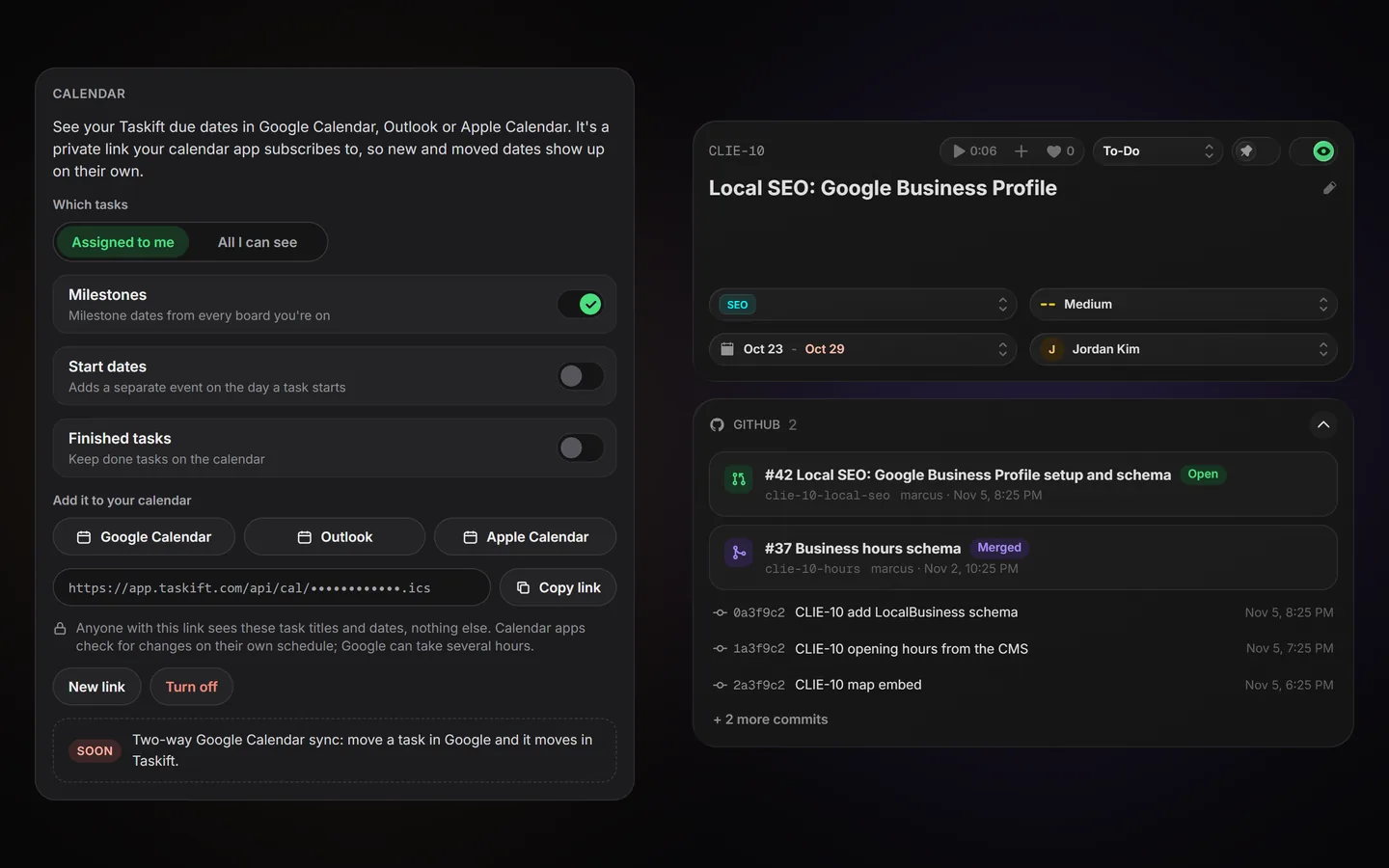
Small teams lose time hunting for two things: when something is due, and whether the code for it has shipped. As of today, Taskift puts both where you already look. Your due dates show up in your calendar, and your pull requests show up on your tasks. Both are included in every plan.
1. Why one place for dates and code
A due date only helps if you see it. Most people plan their week from their calendar, not from a project board, so a deadline that lives only on the board is easy to miss. Code has the opposite problem: the work happens in GitHub, and the board falls behind until someone remembers to move the card. Connecting the two keeps the board honest without anyone typing status updates.
2. Your due dates in your calendar
- Open Account, then Calendar, and click Turn on calendar feed.
- Choose Assigned to me or All I can see, and whether milestones, start dates and finished tasks come along.
- Click Google Calendar, Outlook or Apple Calendar to subscribe.
New and moved dates come through on their own. Calendar apps check for changes on their own schedule, and Google can take several hours. If you use more than one Google account, subscribe from the one you actually plan your week in.
3. Your code on your tasks
- Open Edit Project, then Services, and connect GitHub.
- Link the repository that goes with that project.
- Put the task key, like WEB-12, in a branch name, commit message or pull request title.
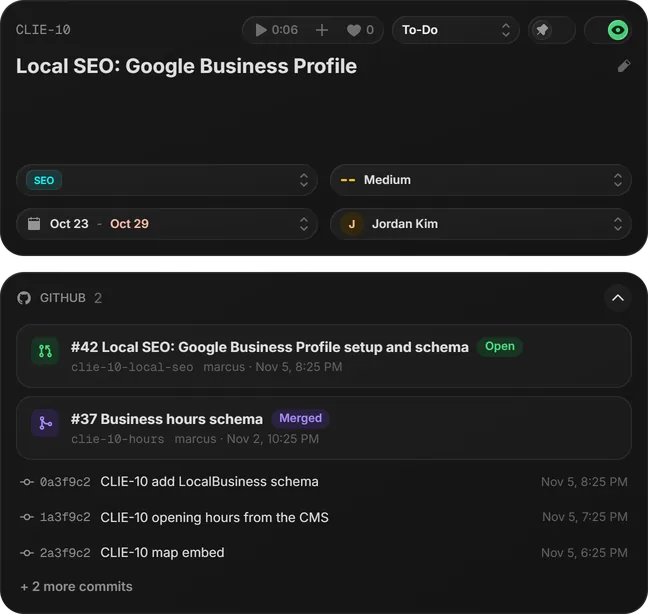
The task shows its open and merged pull requests and its recent commits, and the card on the board shows a small GitHub count. Want the board to keep itself current? Turn on move tasks for me and pick one status for when a pull request opens and another for when it merges.
4. What stays private
- Never your code. Taskift reads titles, branch names and dates. The GitHub app only asks for read access.
- Not for clients. Clients never see the GitHub card, even on projects you share with them.
- Your link, your call. Anyone with your calendar link sees task titles and dates, nothing else. Click New link and the old one stops working right away.
5. What’s next
Two-way Google Calendar sync is next: move a task in Google and it moves in Taskift. Until then, the feed runs one way, from Taskift to your calendar. The step-by-step guides are in the docs: Google Calendar and GitHub.