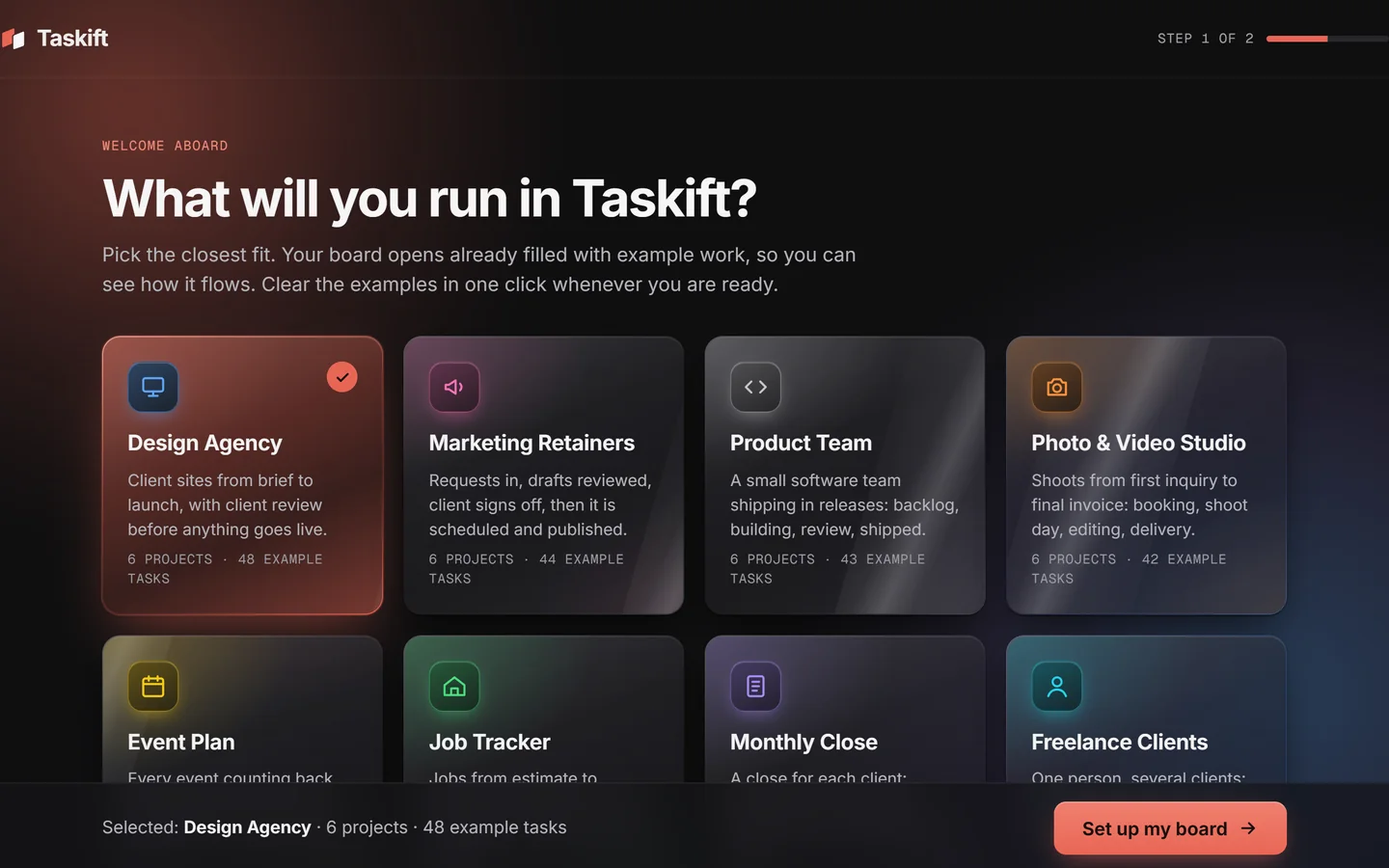
An empty board is a hard place to start. You don't know yet how your projects, statuses and clients should fit together, and nothing on the screen shows you. So a new Taskift workspace no longer opens empty. It opens on one question: what will you run in Taskift?
1. Pick the closest fit
Choose one of eight ready-made boards, or start with an empty one:
- Design Agency: client sites from brief to launch, with client review before anything goes live.
- Marketing Retainers: requests in, drafts reviewed, client signs off, then scheduled and published.
- Product Team: a small software team shipping in releases.
- Photo & Video Studio: shoots from first inquiry to final invoice.
- Event Plan, Job Tracker, Monthly Close and Freelance Clients round out the set.
Each board opens already filled with example work. Design Agency, for example, comes with six client projects and 48 example tasks, so you can drag cards around, open a task and see how the whole thing flows before you add anything of your own.
2. Clear the examples in one click
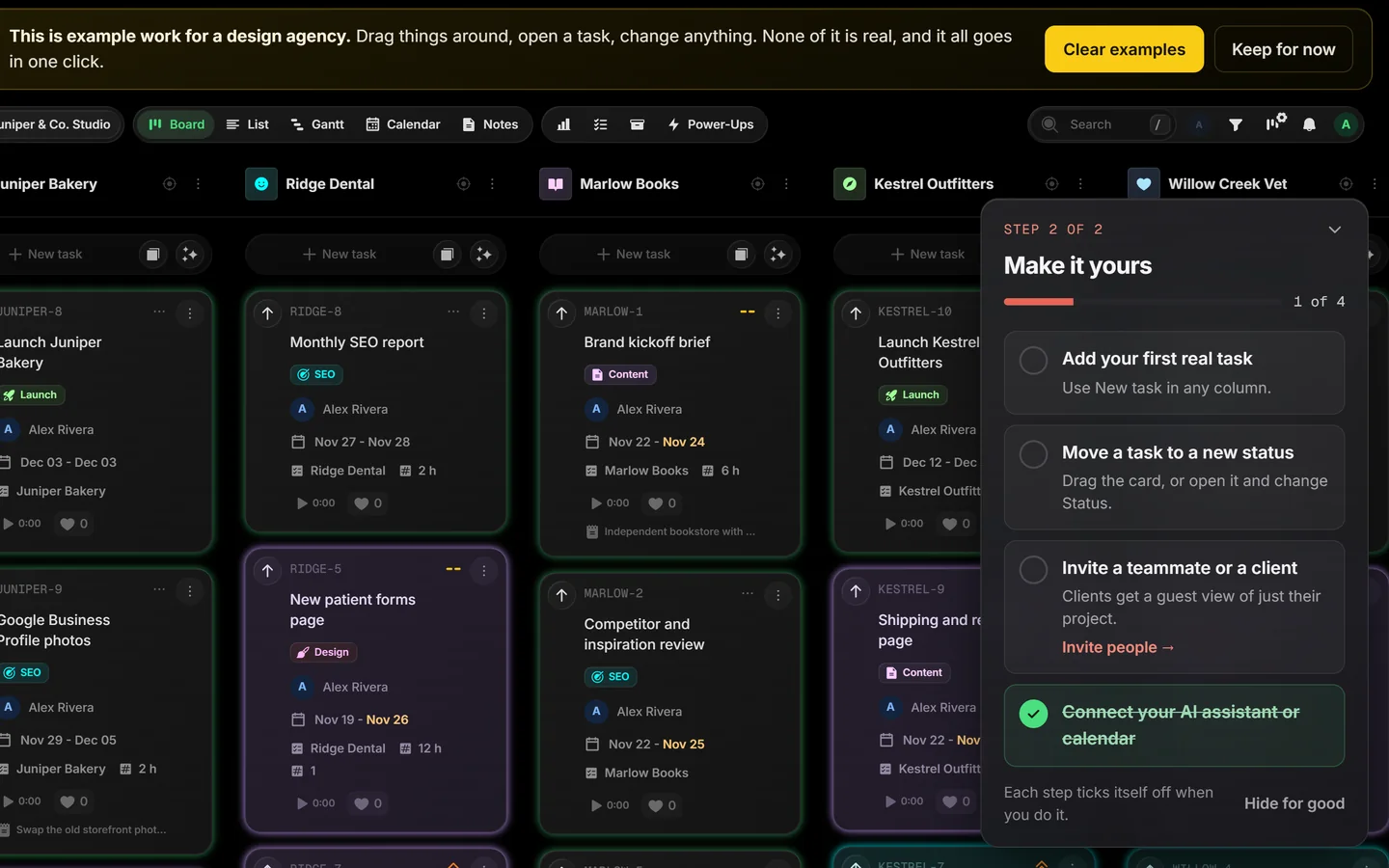
While the examples are on your board, a banner at the top says so, with two buttons: Clear examples and Keep for now. Clearing archives the example tasks. Nothing is deleted, so you can always look back at them.
3. A checklist that ticks itself off
The Make it yours checklist sits on the board with four steps. You don't tick them. Each one ticks itself off when you actually do it:
- Add your first real task.
- Move a task to a new status.
- Invite a teammate or a client. Clients get a guest view of just their project.
- Connect your AI assistant or your calendar.
When you're done with it, Hide for good puts it away.
4. Already using Taskift?
Nothing changes for workspaces you already have. The picker, the example work and the checklist only appear in brand-new workspaces.