Most of the work an agency or MSP does starts somewhere else: a client's email, a vendor's question, a text that says "can you look at this?" And a lot of it has to be shown to someone who will never log in to your board. Today Taskift gets two features for exactly that.
1. Every project has an email address
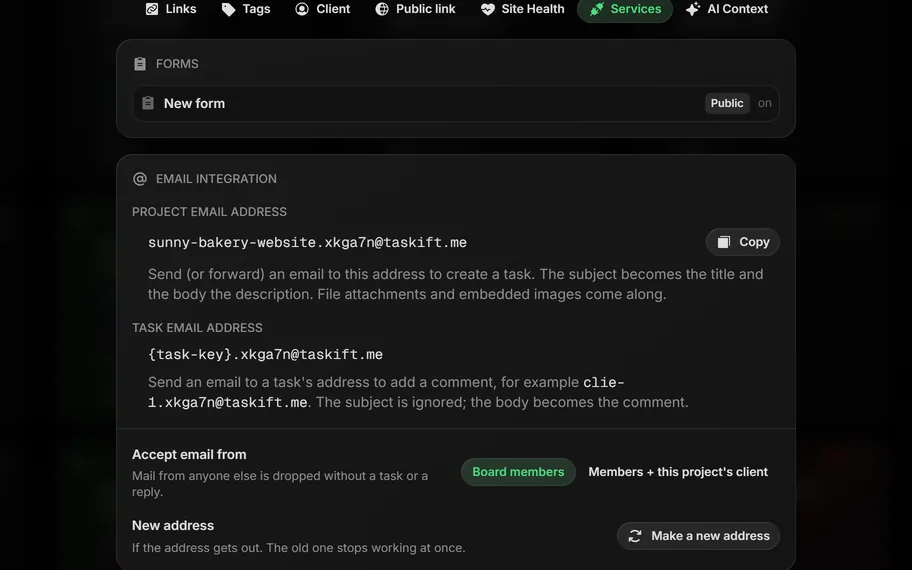
Open a project's menu, pick Edit Project and look under Services. There is the project's own address, something like [email protected].
Forward an email to it and it becomes a task. The subject is the title, the body is the description, and images and PDFs attached to the email come along as files. The task lands in To-Do with a note saying who sent it.
Every task has an address too. Email it and what you wrote is added as a comment, without the quoted thread underneath. Handy when you're on your phone and the conversation is already in your inbox.
2. You decide who can email it in
An inbox address is only useful if it doesn't fill up with junk. So the address listens to board members by default, or, if you switch it, members plus this project's client. A client's email arrives marked as a client request, and they can follow it in their portal.
Mail from anyone else is dropped quietly, with no bounce and no reply, so nobody can use the address to find out it exists. Taskift also checks that the email really came from the sender's domain, so a forged From line doesn't get a task in. If an address ever gets out, Make a new address swaps it and the old one stops working.
3. Share one task with a link
Sometimes you don't want to invite anyone. You just want the landlord to see the move checklist, or the client's marketing person to see the launch date. Now you can open a task, click Share and Create Public URL. Anyone with the link sees a clean, view-only page. No account, no sign-in.
4. Strict by default
A public link is easy to forward and hard to take back, so we built this one carefully:
- Off until the owner turns it on. Public task links are off for every workspace. The owner switches them on in Settings and picks what a public page is allowed to show.
- A confirm step first. Before a task goes public you see the exact list of what will be shown, with counts and dates, and a preview of the page. Comments start off, because that's where internal notes live.
- You can see it and stop it. The Share panel shows how often the page was opened and when. Stop ends the link at once, and the owner can turn every link off in one click.
Try it
Both features are live for every workspace today. The docs walk through each one: Email to task and Public task links. Everything else that shipped is in the release notes.