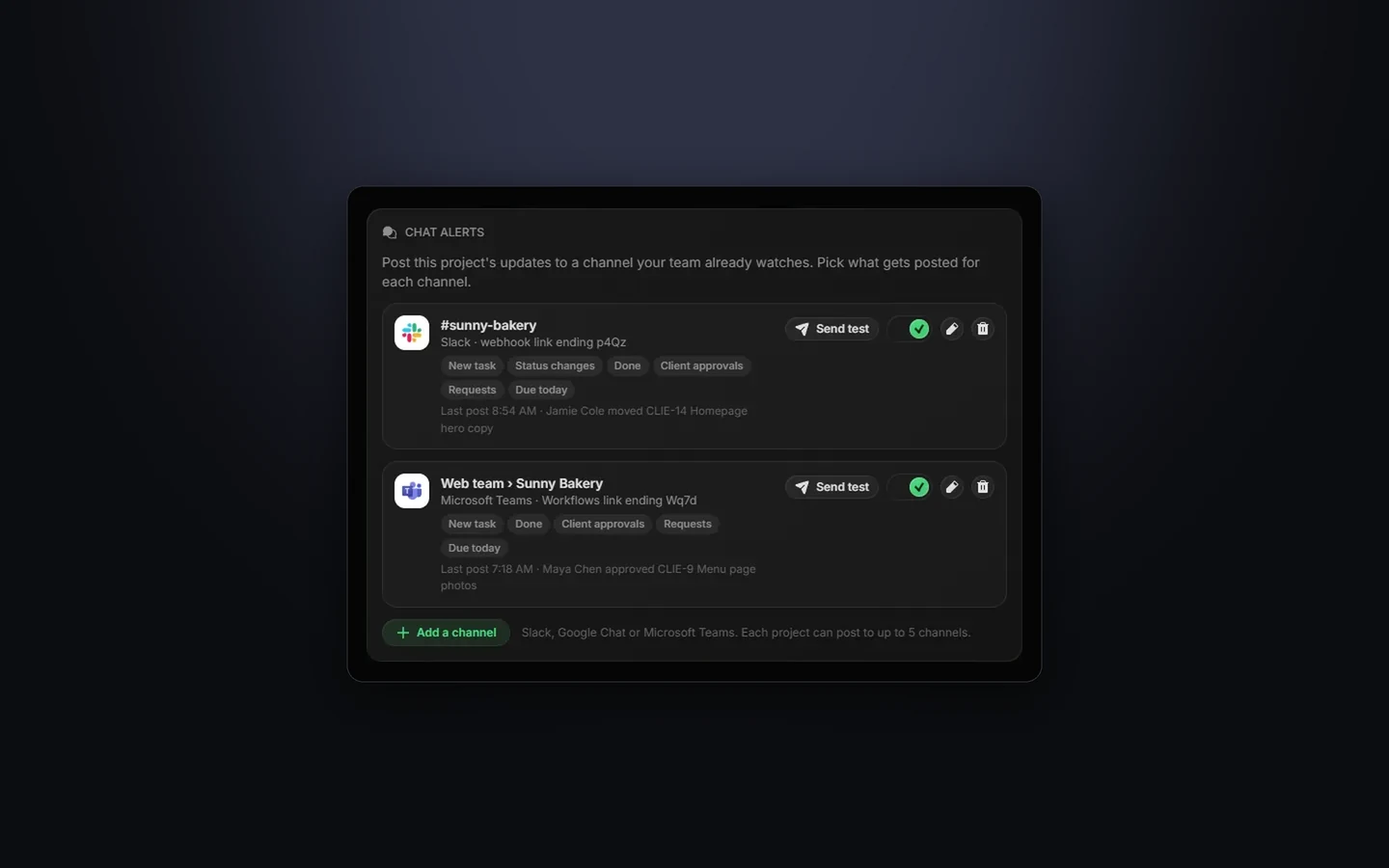
Your team already watches a chat channel all day. Now your board can post there. Each project can send its updates to Slack, Microsoft Teams or Google Chat, so nobody has to keep the board open to find out a client just approved something.
1. Set it up in a minute
- Click the ⋮ next to the project's name and pick Edit Project.
- Open Services and find the Chat alerts card.
- Click Add a channel, pick Slack, Google Chat or Microsoft Teams, and paste the channel's link.
- Tick what should be posted, click Send test, then Save channel.
Where each app keeps that link is in the chat alerts docs, with every click spelled out.
2. You pick what gets posted
- New tasks, status changes and tasks marked done
- New comments
- Client approvals and change requests
- Requests that come in from forms or email
- One due-today and overdue summary at 9:00 AM Eastern
Every message has the task's key, who did what and an Open in Taskift button.
TipOn Microsoft Teams, the link comes from the channel's Workflows ("Send webhook alerts to a channel"). If your company has Workflows turned off, the docs show the same thing in Power Automate. On Google Chat, webhooks need a Google Workspace account.
3. What stays private
Files, time entries, notes and internal comments never leave Taskift. Treat a channel's link like a password: anyone who has it can post to that channel.
Chat alerts are in every plan: 1 channel per project on Solo, and up to 5 on the Teams plan and during the free trial.
Try Taskift free for 14 daysNo card to start.Start free trial →